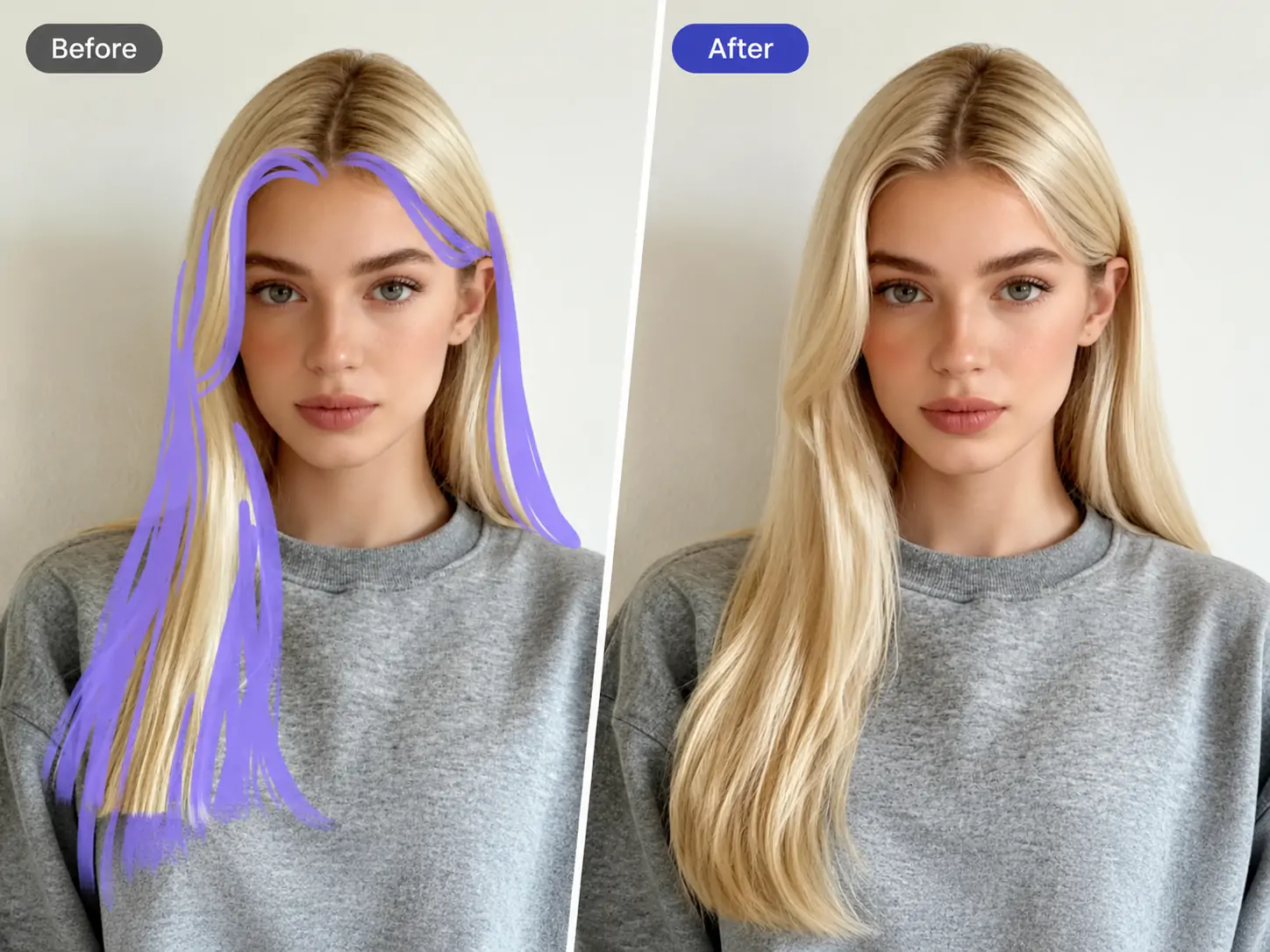
Have you ever had such an experience? You dress up carefully and go out to take photos, but your hair style always looks wrong - it gets messy when the wind blows, your bangs are not perfect, your hair volume doesn't look like enough, or you just want to change your hair style. Going to the barbershop takes time, and wigs are unnatural. In fact, you don’t really need to change your hairstyle. What you need is an intelligent way to guide AI to generate hair strands by hand drawing.

What is AI hair?
ai hair is the AI intelligent hair drawing function launched by PrettyUp. You only need to manually draw the hair direction on the photo, and AI will intelligently generate natural and realistic hair effects based on the preset style you choose.
- Manual brush guide AI generation: Use your fingers to draw the desired hair direction on the photo, and AI will intelligently generate a natural hair effect based on your drawing direction and selected preset style. Every swipe you make tells the AI what kind of hairstyle you want.
- Seven preset styles with different brushes: seven presets: classic, advanced, thick, bangs, custom hair color, curly hair, and thin braids. Each preset corresponds to different brush textures and hair effects. Choose different presets and the hair styles you draw will be completely different.
- Different presets and different brushes: Each preset brush simulates different hair textures - smooth straight hair, curly hair, braided texture of fine braids, etc., making the drawing effect more realistic and natural.
- Only supports photos: Currently focusing on photo hair drawing, so that every photo has an ideal hairstyle.
- Natural and realistic effect: The AI-generated hair is naturally integrated with the original hair. The hair direction is clear and the texture is real, with no trace of retouching.
Tips: When drawing hair strands, it is recommended to gently slide in the direction of the hair strands you want. There is no need to draw too much or too densely. With just a few guiding lines, AI can understand your intention and generate a complete hair effect.
What effects can AI hair bring?
ai hair provides seven preset styles. Each preset has different brush textures and hair effects to meet different hairstyle needs.
classic:Simulates the effect of natural straight hair, making the hair smooth and smooth. Suitable for everyday photos when you want a natural look with tidier hair and clearer strands. The brush simulates the smooth texture of straight hair, and the lines fall naturally when drawing.
advanced:Create a more textured hair effect, with stronger layering and more obvious gloss. Suitable for situations where you want your hair to look more refined and textured, such as portraits or formal occasion photos.
Thick and dense:Increases volume and thickness, making hair look thicker and fuller. Suitable for photos with less hair or hair that looks thinner. The brush simulates the superimposed texture of thick hair. Painting several times can make the effect fuller.
Bangs:Specially used to draw or complete bangs hair, you can draw bangs of different lengths and densities. Suitable for photos where you want to add bangs, adjust the shape of bangs, or complete sparse bangs.
Custom hair color:You can customize the hair color while drawing hair strands to achieve the color effect you want. It is suitable for users who want to try new hair colors but do not want to dye their hair. It can be used with any hair style.
curls:Simulate the curvature of curly hair and create a natural curl effect. Suitable for hairstyles with different curls such as wavy, large or small curls. The brush simulates the spiral texture of curly hair, and the curved lines will generate natural curly hair when drawn.
Thin braids:Simulate the braiding texture of fine braids to create a delicate braided hair effect. Suitable for photos where you want to add a braided element or make the existing braid more refined. The brush simulates the cross braid texture of braids, and the drawn hair has a unique braided feel.
Applicable scenarios:
- Daily Selfies: Quickly optimize your hairstyle to make your hair look neater and more stylish.
- Photo shooting: Add hair layering and texture to photo photos.
- Hairstyle trial: Try different hair styles to see if a certain hair style suits you before deciding whether to go to the barber shop.
- Hair Volume Supplement: For photos with less hair volume, use the Thick and Thick preset to increase hair volume.
- Bangs Adjustment: If you want bangs or adjust the shape of your existing bangs, use the bangs presets to achieve it easily.
- Hair Color Trial: Use custom hair color presets to try different hair color effects before deciding whether to dye your hair.
How to use ai hair?
Step 1: Select photos
Open PrettyUp and select the photo that needs AI hair processing.
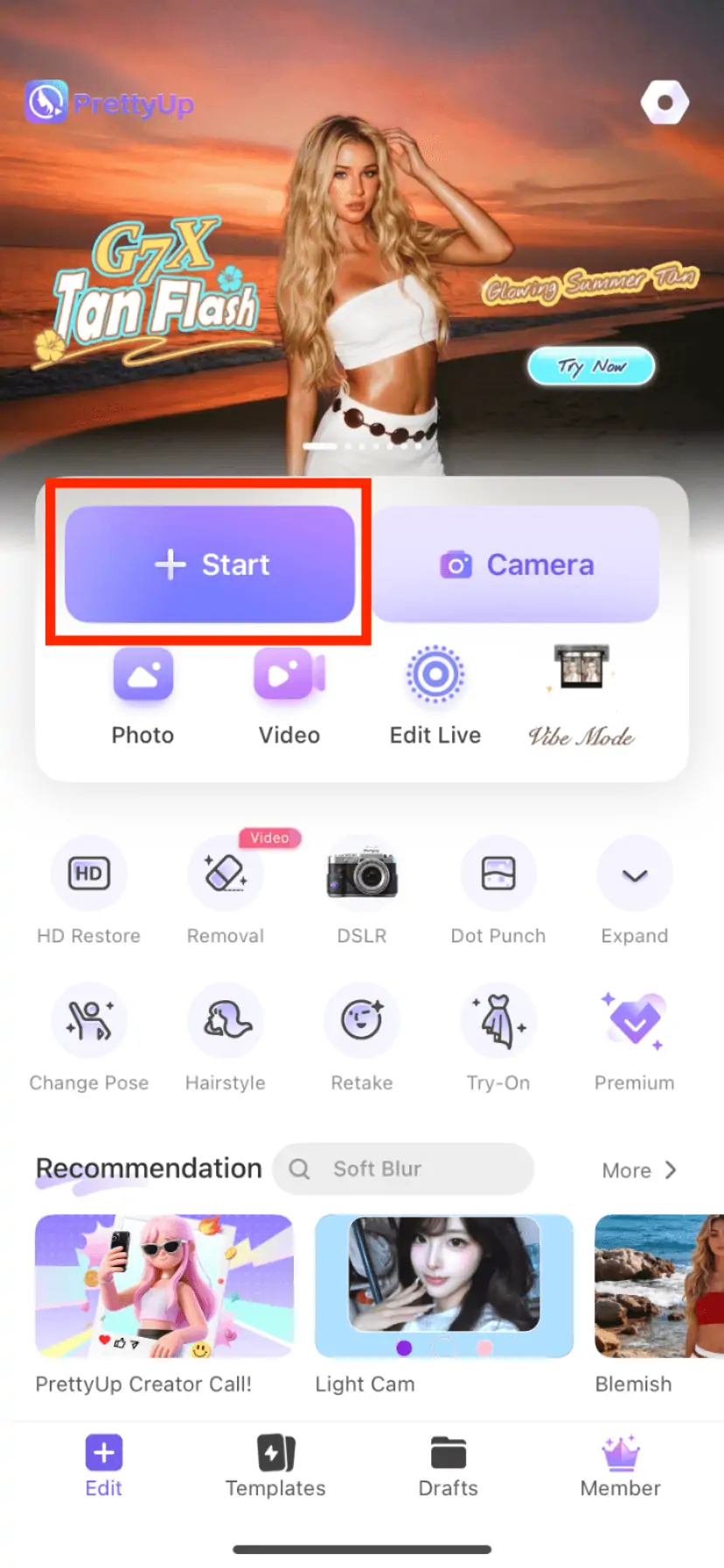
Step 2: Enter the ai hair function
Find the relevant function entrance in the bottom toolbar, click to enter, find the "ai hair" option and click it.
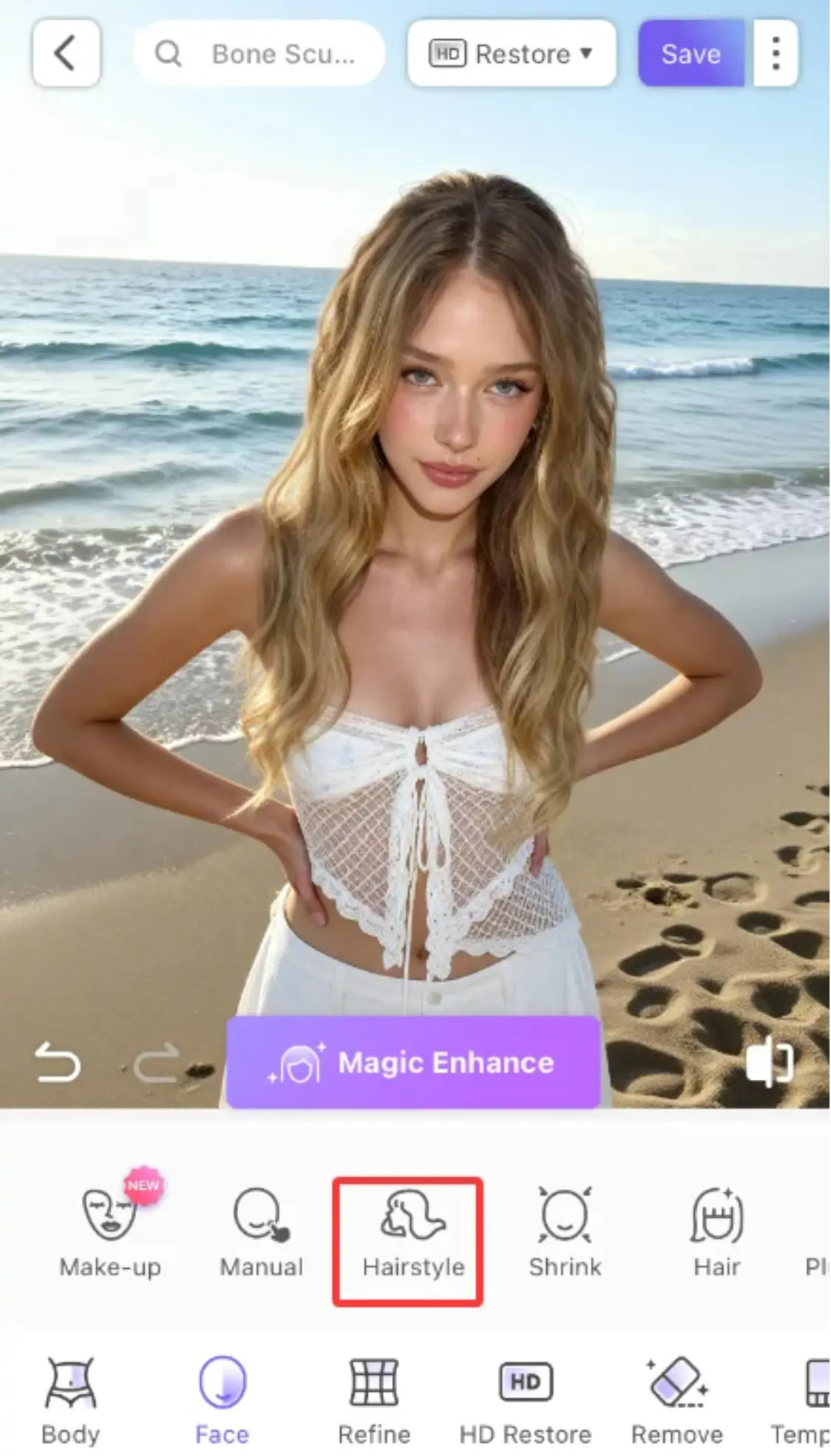
Step 3: Choose a preset style
Choose your desired hair look from the list of presets - classic, premium, thick, bangs, custom hair color, curls or braids. Each preset has a different brush effect, and you can switch previews freely.
Step 4: Draw hair strands manually
Gently slide your finger over the photo in the direction you want the hair to go. There is no need to draw too densely, just a few small strokes to guide the lines. AI will intelligently generate a complete hair effect based on your painting direction and selected preset style.
Hand-drawn guide lines for hair.
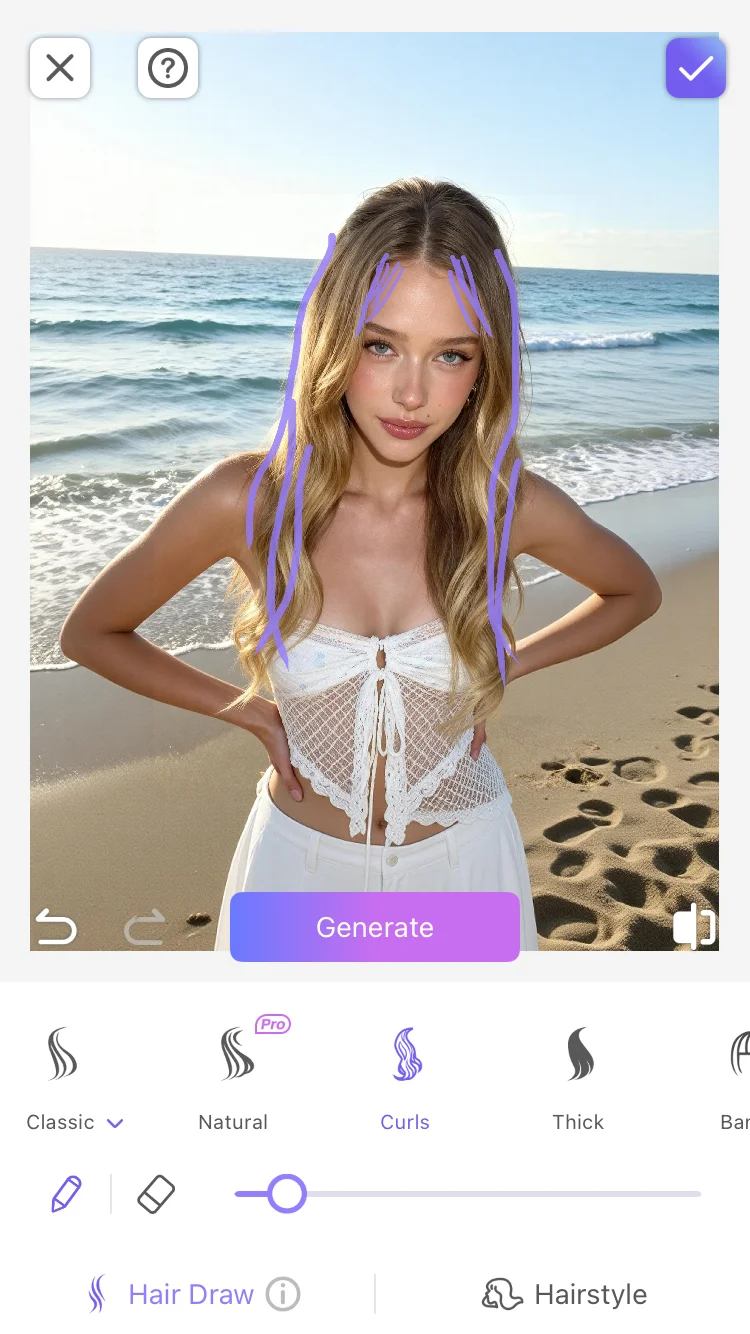
Step 5: AI generation and adjustment
AI will automatically generate hair effects based on your painting. If you are not satisfied, you can erase and redraw, or switch to another preset style and generate again.
Step 6: Confirm and export
When you are satisfied with the adjustments, click "Confirm" or "Apply" to save the changes, and then export your work.
More tips
Tip 1: Choose a preset based on your needs. If you want your hair to be tidier, choose "Classic"; if you want more volume, choose "Thick Hair"; if you want to try curly hair, choose "Curly Hair"; if you want braided hair elements, choose "Thin Braid"; if you want to change your hair color, choose "Custom Hair Color". Different preset brush textures are different, and the painting effects are completely different.
Tip 2: Draw less and generate more. You don’t need to draw the entire hair area, you just need to draw a few guiding lines in key locations, and the AI will understand the direction and style you want. Drawing too much may confuse the AI. Draw a few lines first to see how they look, and then decide if you need to add more.
Tip 3: Use it in conjunction with the erase function. If the AI-generated effect is partially unsatisfactory, you can use the erase tool to erase the hair in a specific area and then redraw it. This allows you to correct only the unsatisfactory areas while retaining the satisfactory parts.
Tip 4: Use it in conjunction with other functions of PrettyUp. AI hair can be used in conjunction with beauty and other functions - first use beauty to optimize facial skin, and then use AI hair to adjust hairstyle, so that the entire portrait from face to hairstyle is exquisite and perfect.
Summarize
ai Hair allows you to easily change the hairstyle in photos by hand drawing. There is no need to go to the barber shop or wear a wig, just make a few strokes with your finger, and AI can generate a natural hair effect. Seven preset styles plus different brush textures meet various hairstyle needs from daily to creative.
The next time your hair isn't perfect after a photo shoot, there's no need to make do. Open PrettyUp and use AI hair to draw the hairstyle you want.