
There are always unexpected intrusions in photos—pedestrians in the background, watermarks in the corners, distracting clutter, or unnecessary text on the screen. You can't remove them, and cropping won't help either, ruining an otherwise good photo. If it's a video, the situation is even more troublesome, as every frame needs to be handled. PrettyUp AI can help you solve these problems with one click, easily removing unwanted content from both still photos and dynamic videos.


What is AI elimination?
PrettyUp AI Eraser is an intelligent removal tool that supports images and videos, offering two removal methods:
- One-Click Removal: AI automatically recognizes common distracting elements in the image such as passersby, text, and watermarks, allowing you to remove them with one click without manual marking
- Hand Painting Removal: For specific areas not covered by one-click removal, you can manually paint over the areas that need to be removed, and the AI will automatically fill them in after painting.
- Adjustable Brush Size: In hand-painting mode, the brush size can be adjusted. A large brush is suitable for covering large areas, while a small brush is suitable for detailed areas.
- Supports both images and videos: AI removal features can be used for both static photos and dynamic videos, with video removal automatically applied to every frame
AI elimination is based on intelligent recognition technology, automatically filling in the background after removal to restore the image to a natural and complete state.
What effects can AI elimination bring?
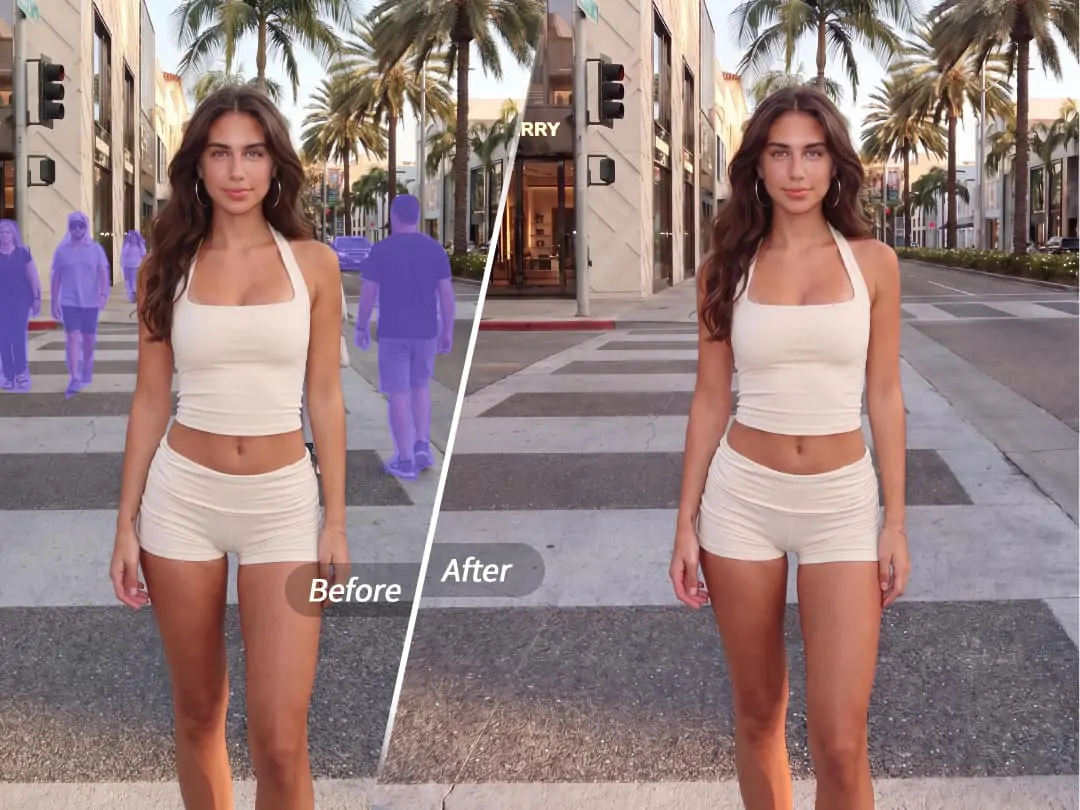
One-click removal of passersby
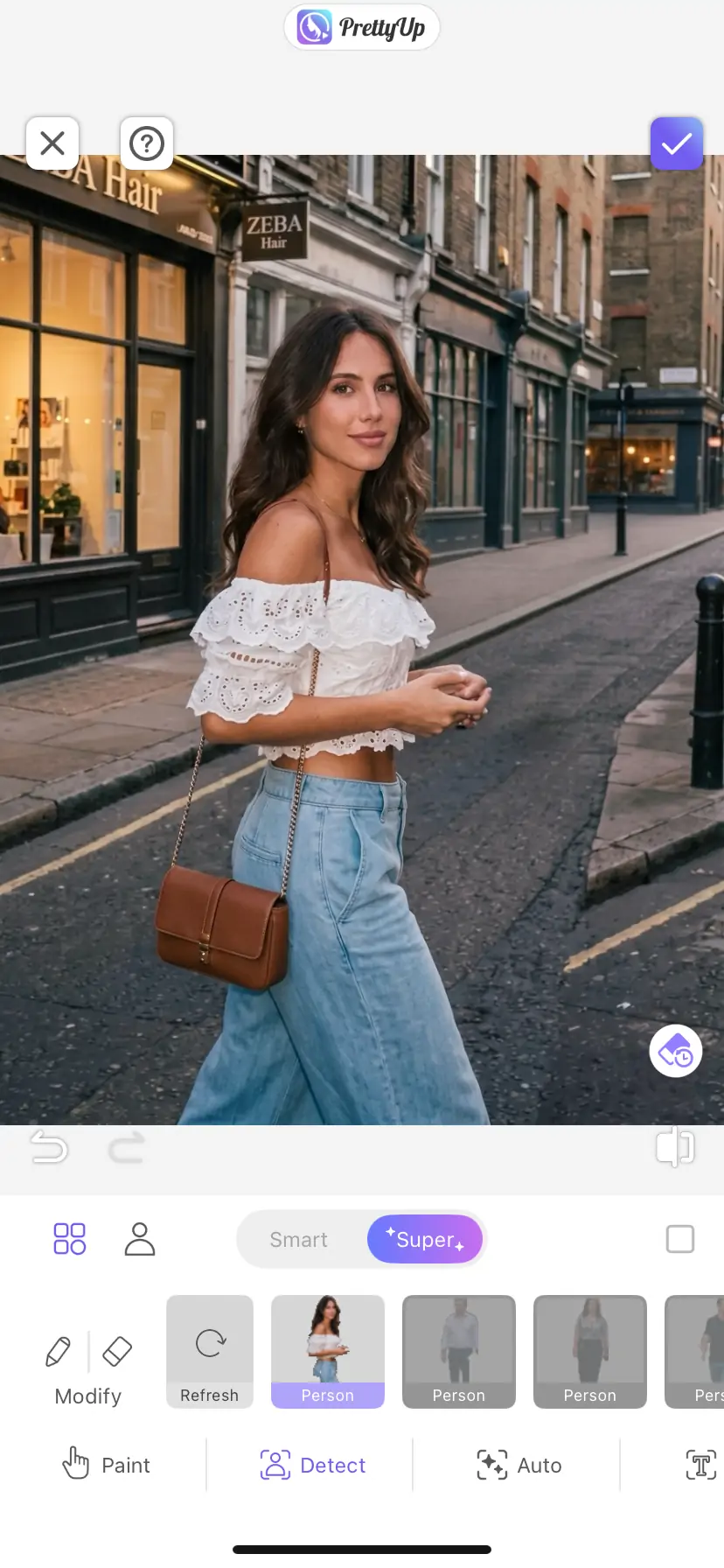
When taking photos at popular attractions or public places, it is difficult to avoid other pedestrians. The one-click removal mode will automatically detect people in the frame, and you can click to remove passersby, with the background automatically filled in and restored.
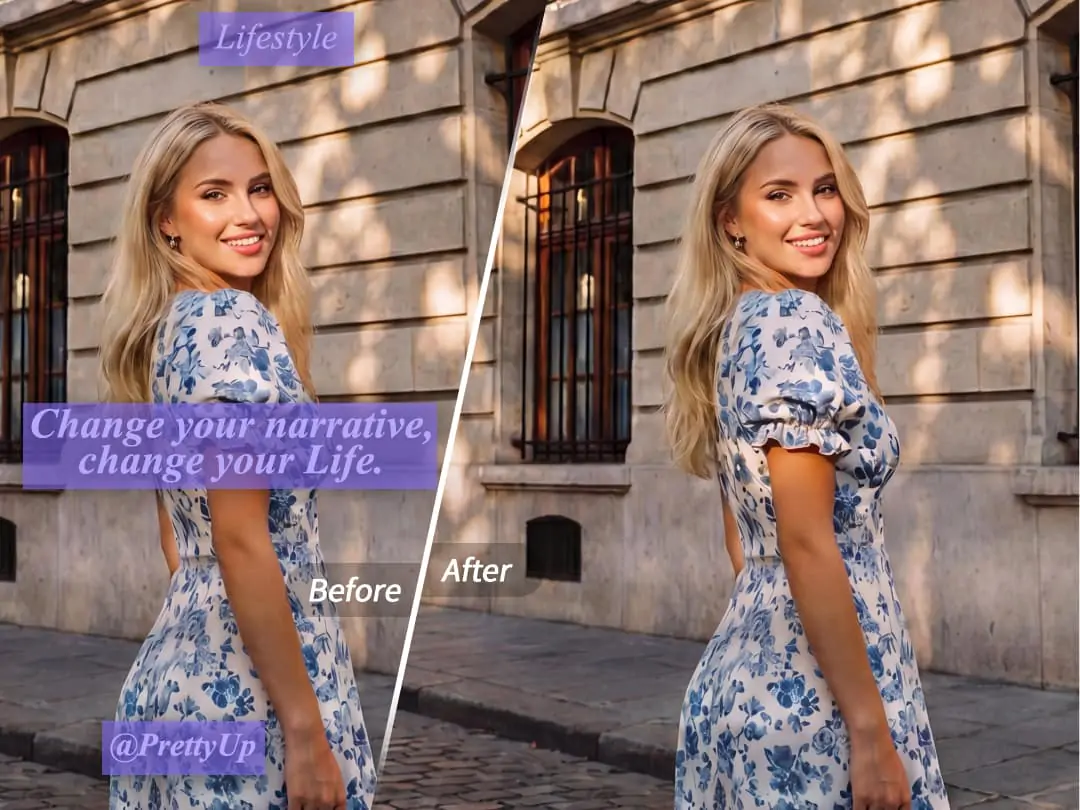
One-click to remove text and watermark
Watermarks on screenshots or online images, text on posters, and date stamps on photos—these text elements often ruin the visual appeal. One-click removal can quickly identify and eliminate these text elements, keeping the image clean and tidy.
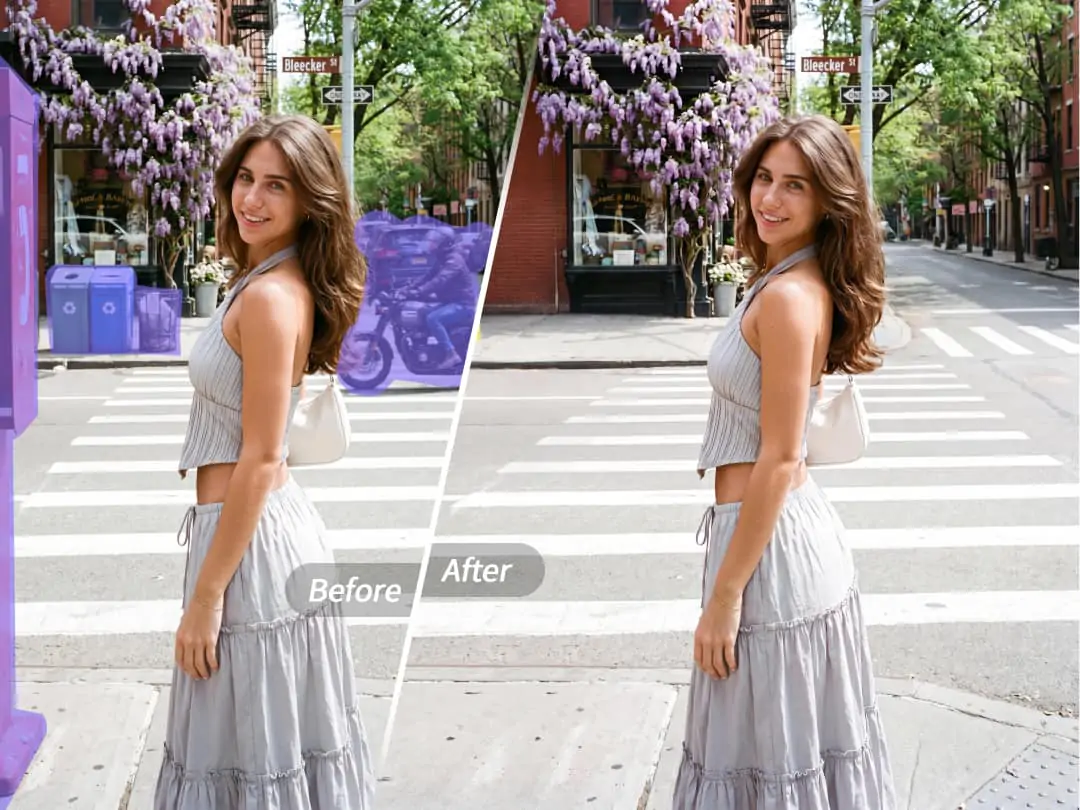
Hand-painted removal of specific areas
When the object that needs to be removed is not a common passerby or text, the manual painting mode is more flexible. Adjust the brush size and paint over the area that needs to be removed. The AI will intelligently recognize the content within the painted area and remove it. A small brush is suitable for removing minor flaws and lines, while a large brush is suitable for handling larger areas of clutter.
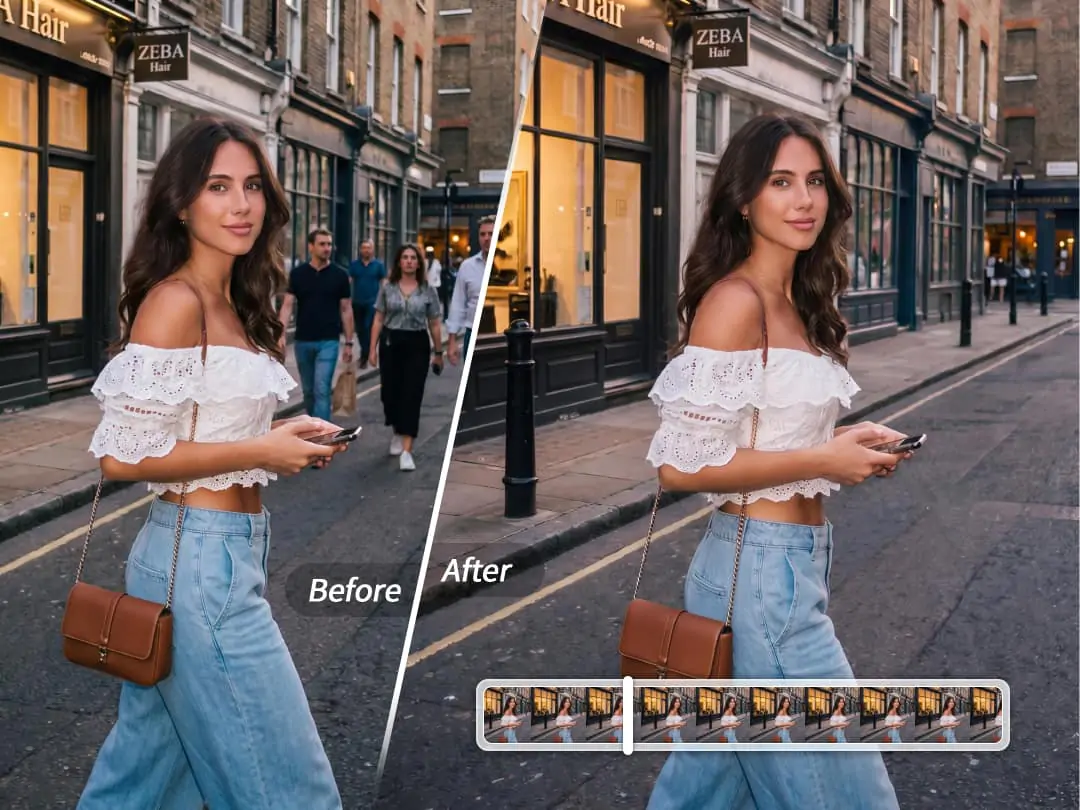
Video Removal
Clutter in videos is harder to handle than in photos because objects may move within the frame. AI removal is suitable for video editing, allowing a single removal operation to be applied to the entire video clip, keeping each frame clean and consistent.
How to use AI to eliminate?
Function entry: On the main editing page, click 'Start Beautifying,' then select 'Erase Pen.'
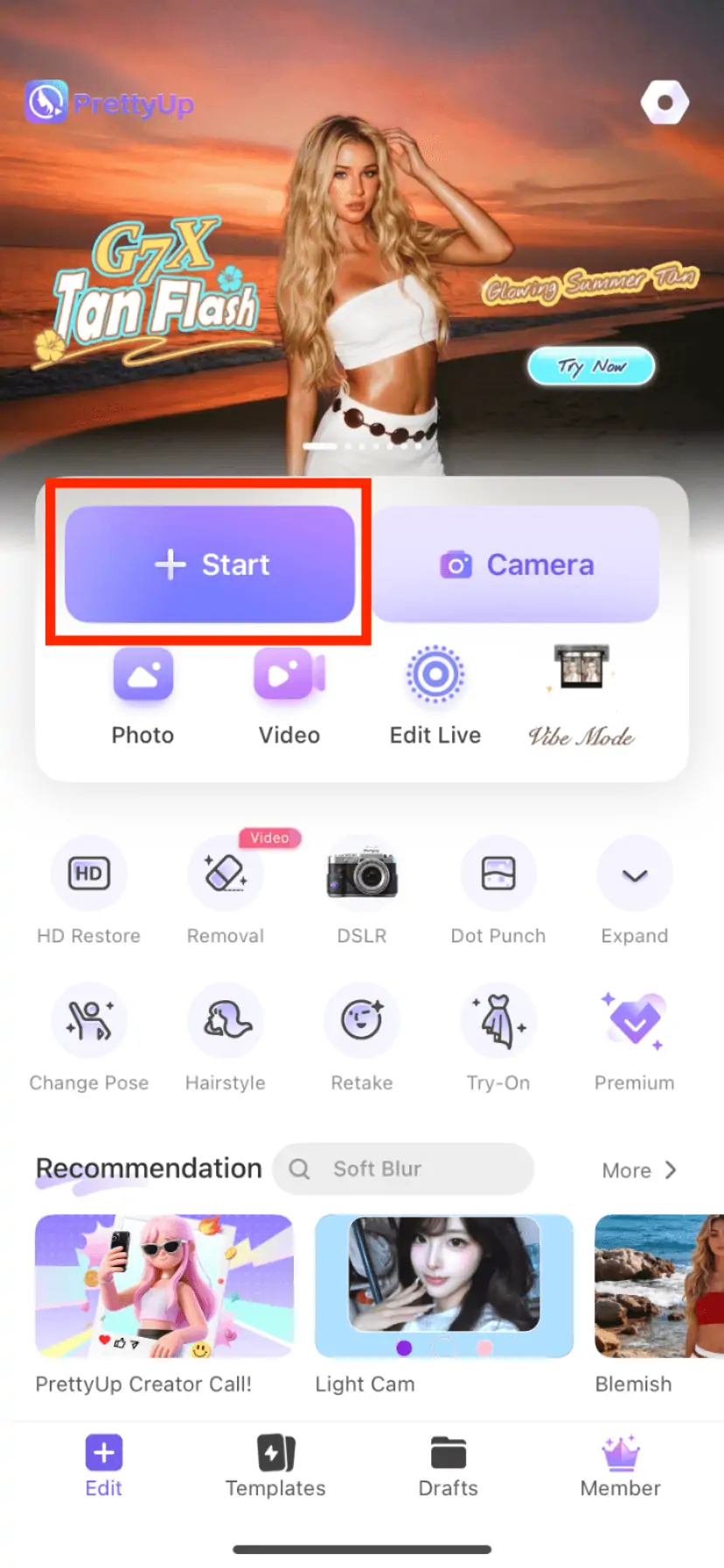
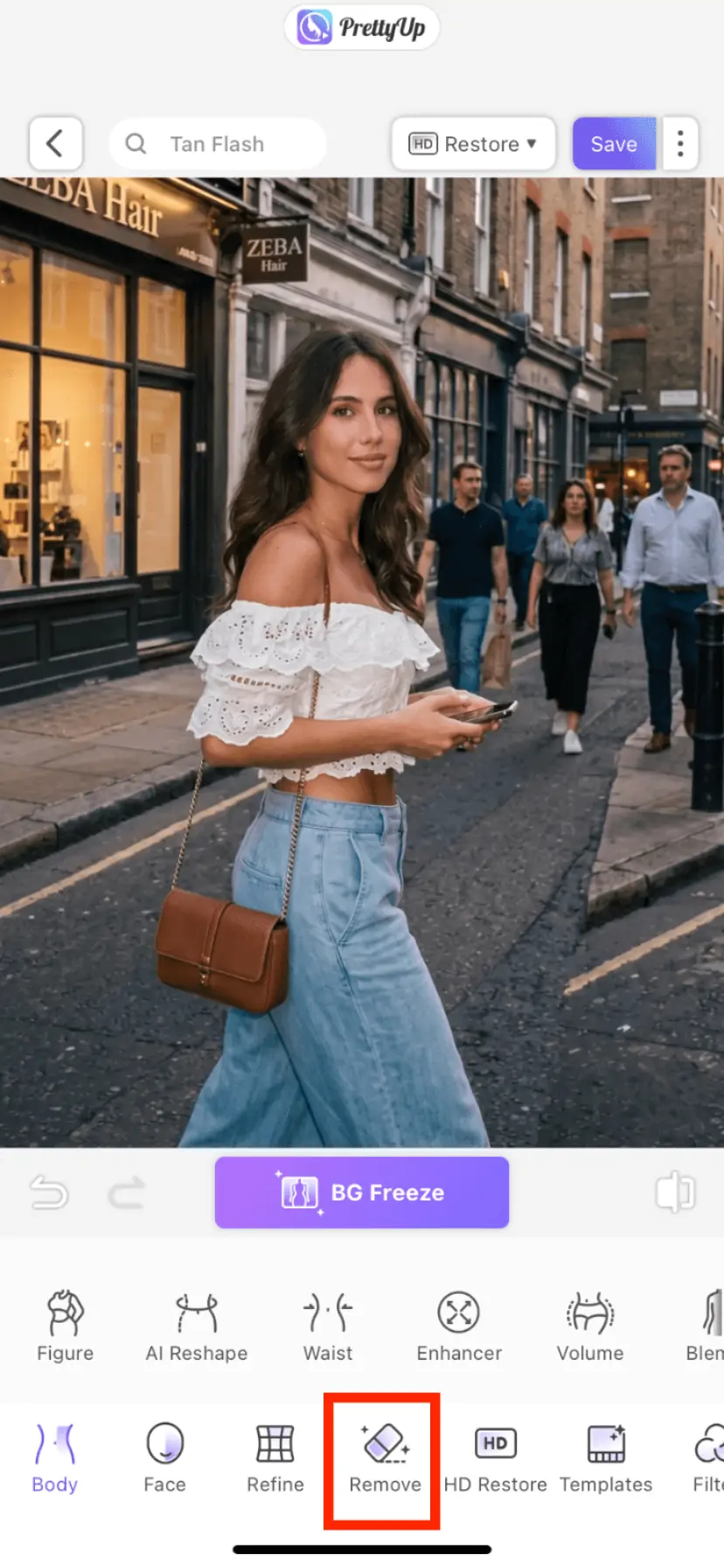
Method 1: One-Click Elimination
After opening a photo or video, enter the AI removal feature. The AI will automatically scan the screen and identify common distracting elements such as passersby and text objects. The identified areas will be highlighted, and you can click on the highlighted areas to remove these distractions with one click. If the AI does not automatically recognize an object, you can also manually click on the object to remove it.
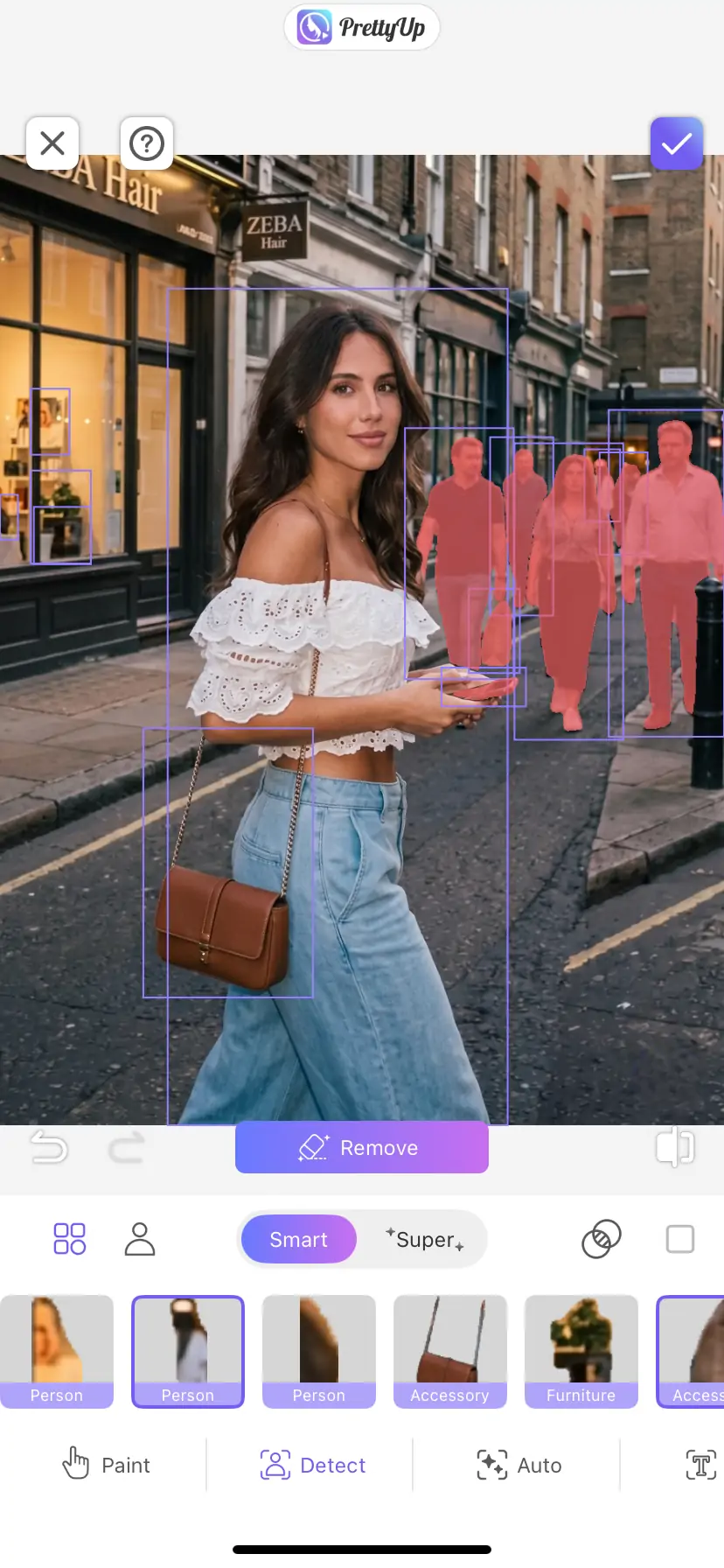
Method 2: Manual Erasing
For areas that cannot be removed with one-click erasing, switch to manual brushing mode. Adjust the brush size according to the size of the area that needs to be removed—use a small brush for tiny blemishes and a large brush for larger areas. Brush over the areas that need to be removed, and after brushing, AI will automatically process and fill in the background. If the effect is not ideal after one pass, you can brush the same area multiple times to gradually improve it.
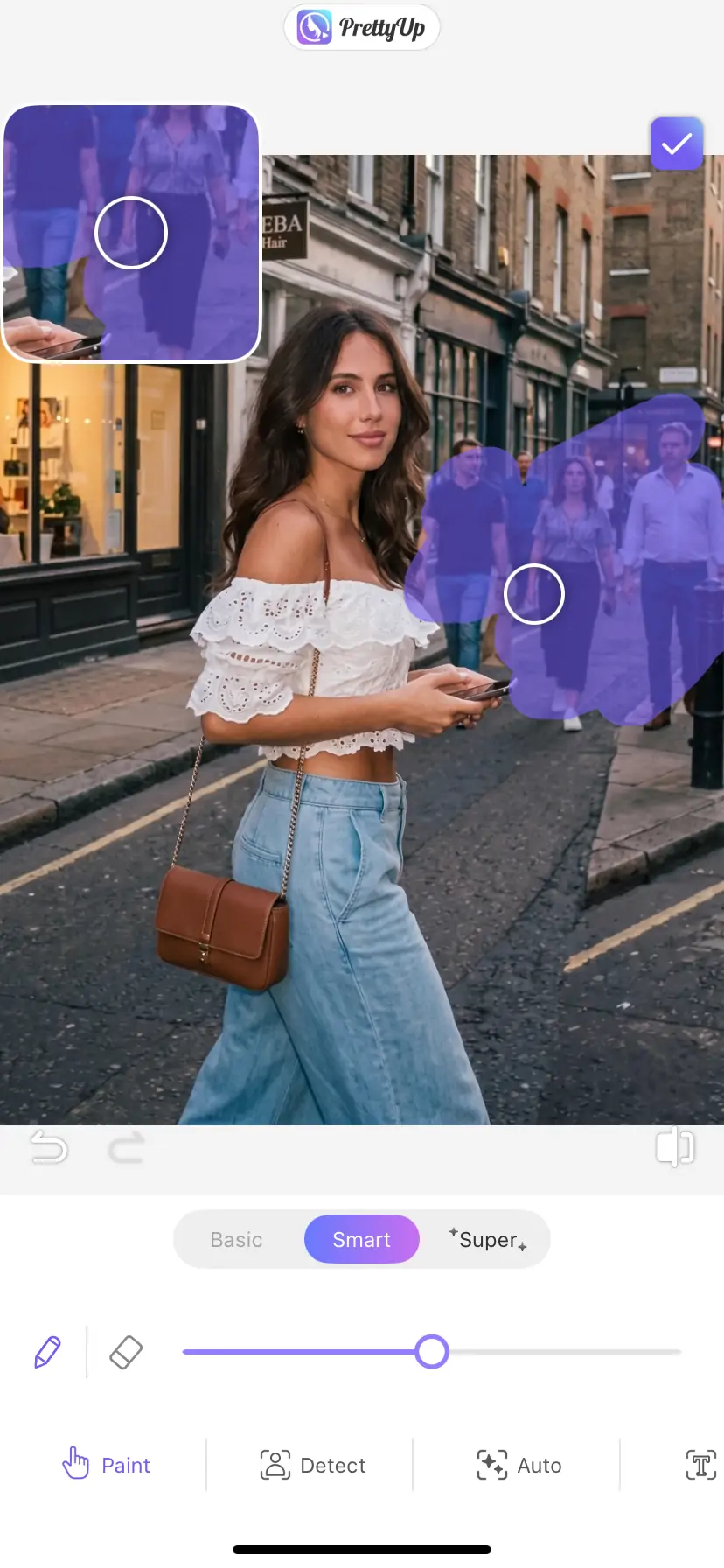
Confirm effect
Preview the removal effect. If some areas are not restored naturally enough, you can use the manual painting mode for supplementary treatment. Save the image or video once you are satisfied.
More Usage Tips
Tip 1: Try one-click removal first, then use manual painting. One-click removal is suitable for handling passersby, text, watermarks, and other objects that AI can easily recognize, offering the highest efficiency. Only switch to manual painting for refinement when there are areas that one-click removal cannot cover, or when you need to remove specific irregular objects.
Tip 2: Flexibly Switch Brush Sizes When Hand-Painting. Use a small brush when dealing with fine wires, stains, or text strokes to avoid accidentally painting over surrounding normal areas. Switch to a large brush when handling large areas of debris or background objects to improve painting efficiency.
Tip 3: Remove objects from the video while maintaining visual continuity. If the object to be removed is moving in the video, it is recommended to first use a one-click removal to let the AI automatically track and identify it, then manually paint to supplement the details. After removal, it is recommended to preview the entire video clip to ensure that the restoration of each frame is natural and smooth.
Tip 4: Use with other PrettyUp features. After removal is complete, you can use PrettyUp's other features to further enhance your photos—adjust the composition with the background protection feature after removing passersby, or combine with the beautification feature for fine-tuning faces, making the final result even more perfect.
Summary
PrettyUp AI makes removing clutter from photos and videos no longer a problem. One-click removal quickly clears passersby, text, and watermarks, while hand-painted removal flexibly handles any area. Brush size can be freely adjusted, and it fully supports both photos and videos. Download PrettyUp now to make every photo and video clean and fresh!