
Found that your earrings don't match your overall outfit when taking photos? Want to see the effect of changing a necklace? Made a manicure but want to try other designs after taking pictures? Buying new accessories or redoing your manicure is too much trouble, especially just to see the photo effect. PrettyUp AI allows you to freely replace accessories, manicures, and various adornments directly in your photos, change them whenever you want.


What is AI replacement?
PrettyUp AI Replacement is an intelligent item replacement tool that allows you to freely replace specified areas of items in photos. It offers three replacement methods to meet different scenario needs:
- Preset Replacement: Select replacement content from the built-in preset categories. The presets include common categories such as jewelry (earrings, necklaces, bracelets, etc.), accessories (hair accessories, hats, glasses, etc.), flowers, and more. You can see the effect with just one click.
- Upload Reference Image Replacement: Upload the accessories or nail art images you want, and AI will automatically recognize and apply them to the application area. This is perfect for replacing nail patterns, specific styles of earrings, and more.
- Input Description Replacement: Use text to describe the replacement effect you want, such as "gold hoop earrings" or "pink gradient nails," and the AI generates corresponding content based on the description.
- Adjustable brush size: Supports adjusting the brush size while painting. Small brushes are suitable for detailed areas (such as earrings and nails), while large brushes are suitable for larger areas (such as hair accessories and necklaces).
What effects can AI replacement bring?
Accessory Replacement: One-Click to Put on New Jewelry
The jewelry category in the preset classifications covers a variety of common accessories—earrings, necklaces, bracelets, and so on. You can select any item to see how it looks when worn. If the desired style is not available in the presets, uploading a reference image can accurately reproduce the design details of a specific piece of jewelry. Whether you want to try on different earring styles or see if a necklace matches today's outfit, AI replacement can quickly provide an answer.
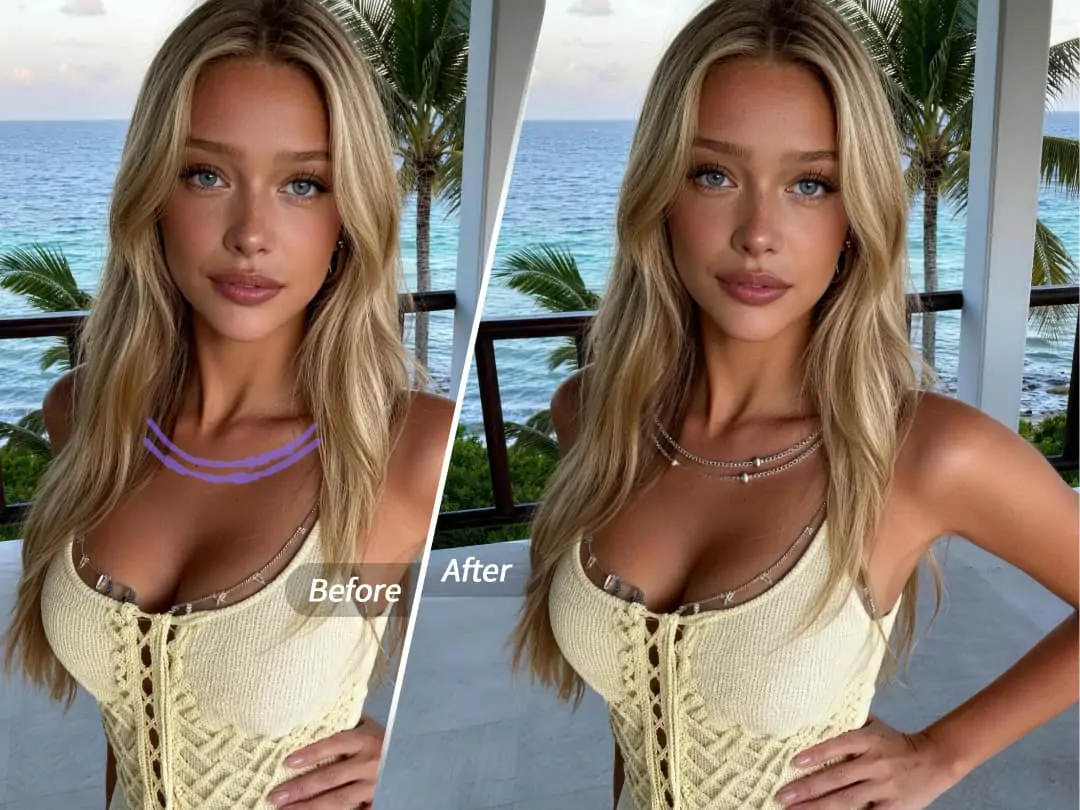
Nail Art Replacement: Freely Try Various Nail Art Designs
Changing nail art designs is a major highlight of AI replacement. After applying to the nail area, upload a nail reference image or enter a description—"French white edges," "cat's eye blue," "pink gradient," "marble pattern"—and the AI can precisely apply the design to the nails. You don't need to actually do the manicure to see the effect in advance, or you can switch to a different style at any time.
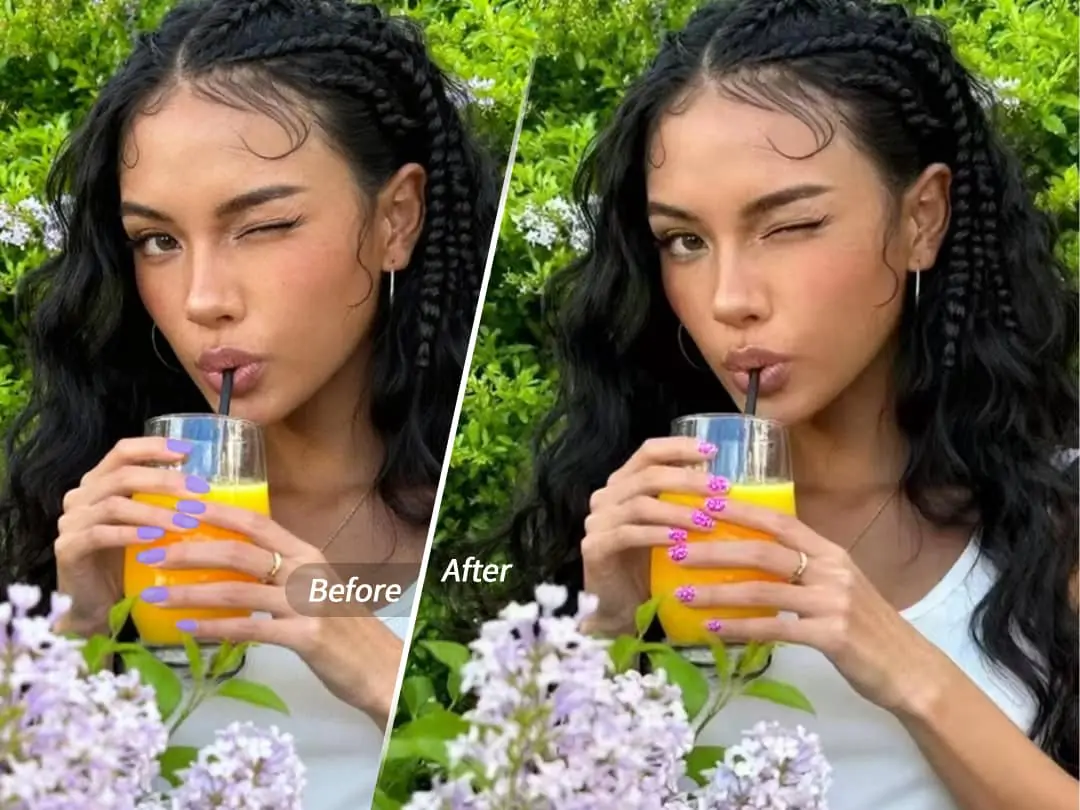
Accessories and flowers and other replacements
In addition to jewelry and nail art, the presets also include categories such as accessories and flowers. Accessories like hairpieces, hats, and glasses can be quickly swapped, while flowers are suitable for adding decorative elements to photos. Whether you want to add a flower to your hair in a photo or change to a pair of sunglasses, it only takes a few steps of painting and selecting.
How to use AI replacement?
Function entrance: On the homepage, click the 'Expand' feature, and then click 'AI Replace'.
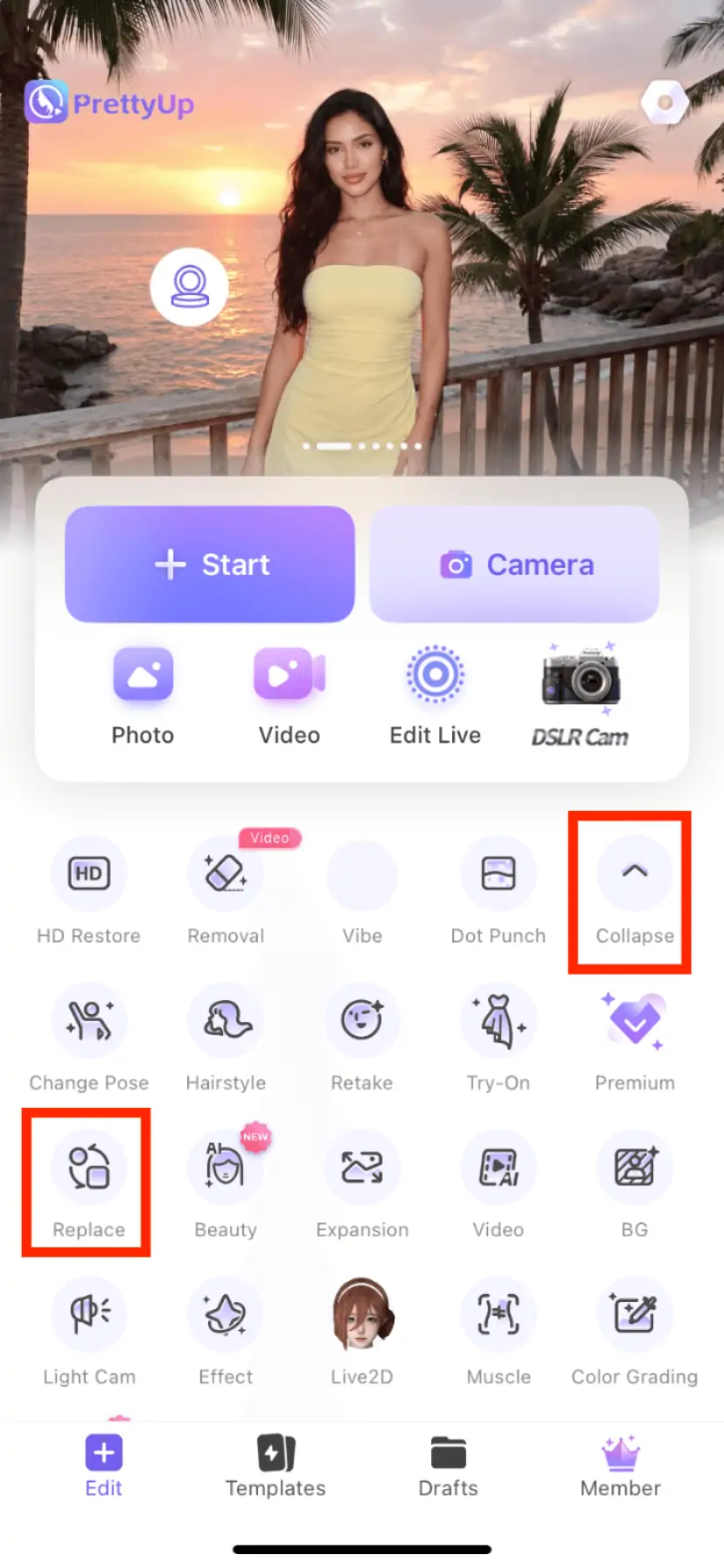
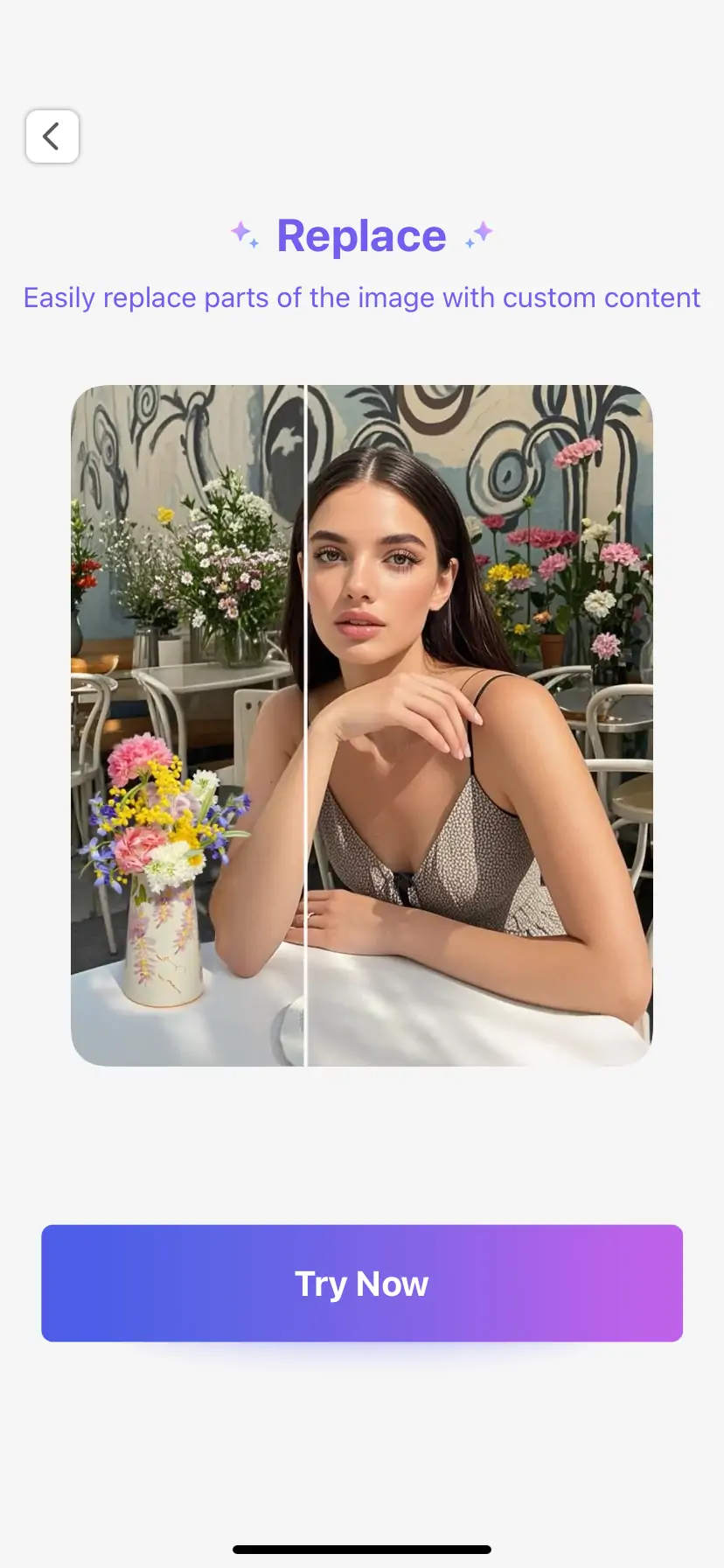
Smear Replacement Area
After entering AI replacement, adjust the brush size according to the size of the content to be replaced—use a small brush to carefully paint over small items like earrings and nail art, and use a large brush to quickly cover larger areas like hair accessories and necklaces. Paint over the area that needs to be replaced and select the target range.
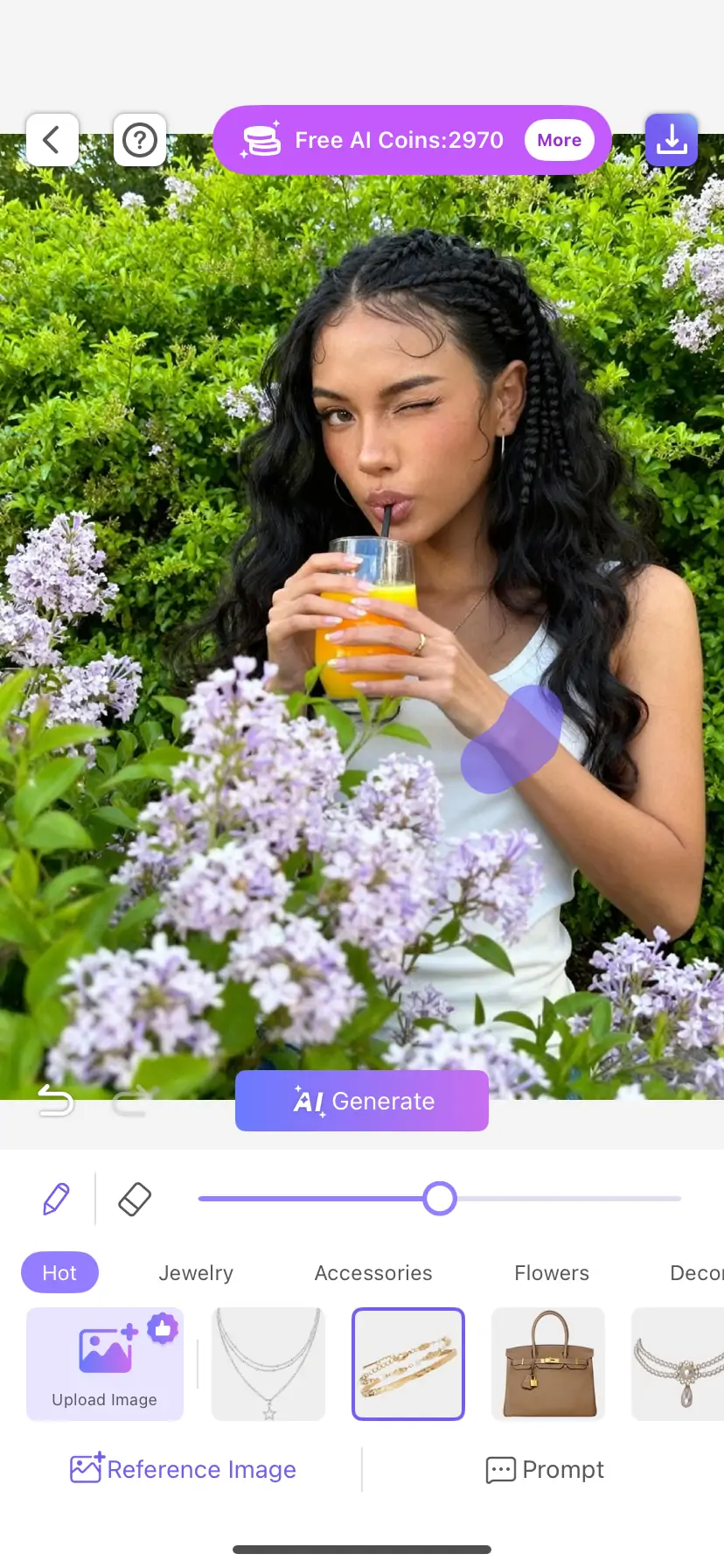
Choose Replacement Method
After applying, choose one of the following three methods for replacement:
- Preset Replacement: Browse preset categories (jewelry, accessories, flowers, etc.) and select the replacement content you want. The AI will automatically apply the selected item to the painted area.
- Upload Reference Image Replacement: Click to upload an image, select the target accessory or nail art picture from the album, and AI will recognize the items in the reference image and apply them to the painting area
- Input Description Replacement: Enter text in the description box to describe the replacement effect you want, for example, "silver tassel earrings" or "blue cat's eye stone manicure". The AI generates corresponding content based on the description.
Confirm and Save
Preview the replacement effect, and save it if you are satisfied. If the effect is not ideal, you can adjust the smearing area or try other replacement methods until you achieve a satisfactory result.
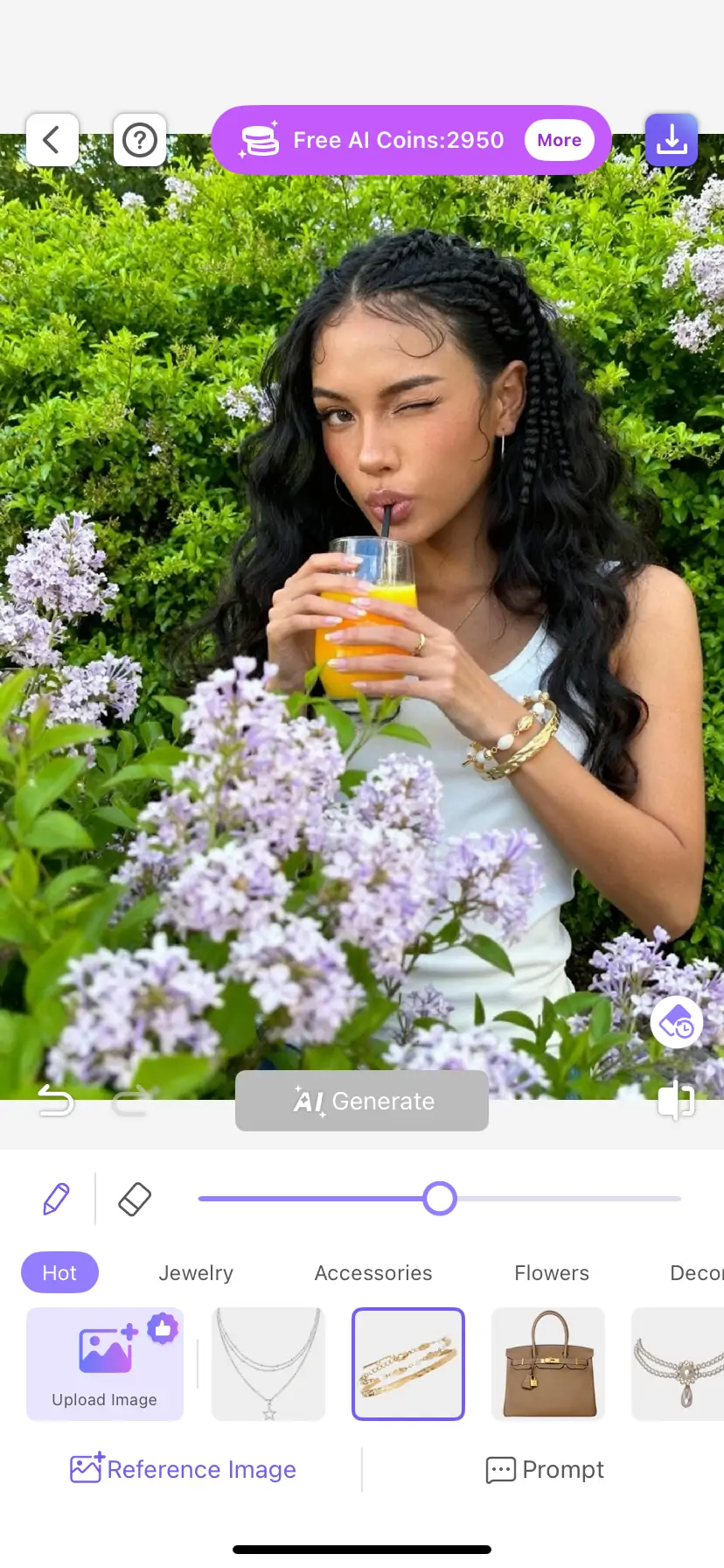
More Usage Tips
Tip 1: Flexibly Choose Among Three Replacement Methods. Preset replacement is the fastest and most convenient, suitable for jewelry and accessories that already have preset categories. Uploading a reference image for replacement is suitable for scenarios with a specific reference style, especially for replacing nail art patterns. Input description replacement is suitable for situations where there is no ready reference image but the scene can be clearly described, offering the highest degree of freedom.
Tip 2: Use a small brush for detailed areas. When replacing fine items like earrings, nail art, necklace pendants, etc., it is recommended to use a small brush to carefully apply to the target area. This allows AI to more accurately recognize the replacement range, resulting in a more natural effect. Large brushes are suitable for larger items like hair accessories and hats.
Tip 3: Combine with other PrettyUp features. AI replacement can be used in combination with facial beautification, facial feature reshaping, and other functions. First, replace accessories and manicures, then fine-tune the face to make the overall effect more harmonious. After replacement, you can also use the color adjustment tool to unify the tone of the image.
Tip 4: Pay Attention to Application Precision When Replacing Nail Polish. The nail area is small and the shape of the fingers is irregular, so it is recommended to zoom in while applying and paint each nail individually. You can replace a single nail at a time, or replace multiple nails at once and then adjust them individually.
Summary
PrettyUp AI replacement allows you to freely change accessories and nail art in photos without actually buying or making them. Preset replacements let you quickly select jewelry and accessories, upload reference images to accurately replicate the desired style, and input descriptions to freely unleash your creativity. Brush size can be adjusted freely, allowing precise application even in fine areas. Download PrettyUp now and experience the endless matching possibilities brought by AI replacement!