
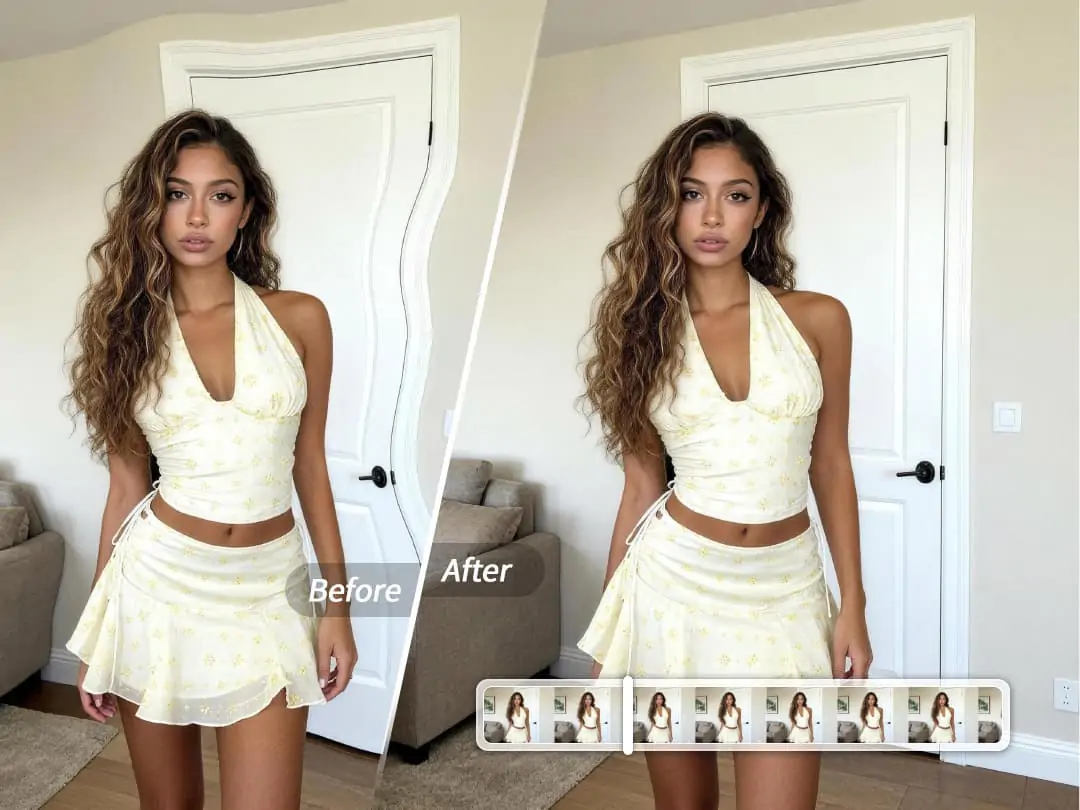
Have you ever had such an experience? Using photo editing software to adjust body proportions, making the waist slimmer and the legs longer, but the walls, floor, doors, and windows in the background all get distorted—you can spot the editing traces at a glance. The more complicated the manual push-and-pull tool operation, the more severe the background deformation becomes. The problem is not that your skills are lacking, but that the tool is not smart enough.


What is background protection?
Background Protection is an AI intelligent background protection feature launched by PrettyUp. When you use the body adjustment feature, it automatically identifies and protects the background area, ensuring that the background remains natural and undistorted after body optimization.
- AI Intelligent Background Recognition: AI automatically distinguishes between the human body outline and the background area, affecting only the body when adjusting the figure, while the background remains completely unchanged.
- One-Click Switch Control: Provides an independent background protection switch, allowing you to freely choose to turn it on or off. When turned on, the background is completely protected; when turned off, the background naturally changes with the body, flexibly adapting to different needs.
- Supports both images and videos: Whether it's a still photo or a dynamic video, background protection can be perfectly adapted, keeping the background of every frame natural.
- Cooperate with body functions: Background protection can be used in conjunction with body adjustment features such as slimming, hip shaping, and one-click body beautification, automatically protecting the background while shaping the body.
- Preserve background details: Fully retain background details such as wall textures, floor lines, and door and window contours, with no visible signs of editing.
Tip: It is recommended to enable background protection when making significant body adjustments. For minor tweaks, you can decide whether to enable it based on the specific effect. You can switch the toggle on or off at any time to compare the differences in effect in real time.
Schematic diagram of the position of the background protection switch in the body adjustment function.
What effects can background protection bring?
The core value of background protection is that no matter how you adjust your body shape, the background doesn’t get distorted.
Enable Background Protection: When adjusting body parts such as the waist, hips, and legs, background elements like the wall, floor, and furniture remain unchanged, without distortion or stretching caused by changes in body contours. The final effect looks natural, as if it was always that way, with no signs of retouching.
Turn Off Background Protection: The background will change correspondingly with body adjustments, suitable for certain creative effects that require background synchronization. For example, when a significant overall composition adjustment is needed, turning off background protection can make the image more harmonious.
The contrast effect is immediately apparent: With background protection enabled, when adjusting the body, the straight lines in the background remain straight, and the image still looks natural; when disabled, the background will show obvious distortion following the body changes. This contrast intuitively demonstrates the actual value of background protection.
Comparison of the effects of background protection being on vs off, showing the difference in whether the background is distorted.
Applicable Scenarios:
- Full-Body Photo Adjustment: When adjusting your overall body proportions, make sure the lines of the wall and floor in the background are not distorted.
- Photos of fitted clothing: Body-shaping adjustments for fitted clothing such as tight tops and pencil skirts, with background details fully preserved.
- Indoor and Street Photography: Scenes with clear lines in the background indoors (doors, windows, floors) or outdoor architectures, background protection is particularly important.
- Group Photos: When adjusting the body of a single person, it does not affect the background of other people in the group photo.
- Video Beautification: Each frame in the video maintains a consistent background, without any background flickering or distortion.
How to Use Background Protection?
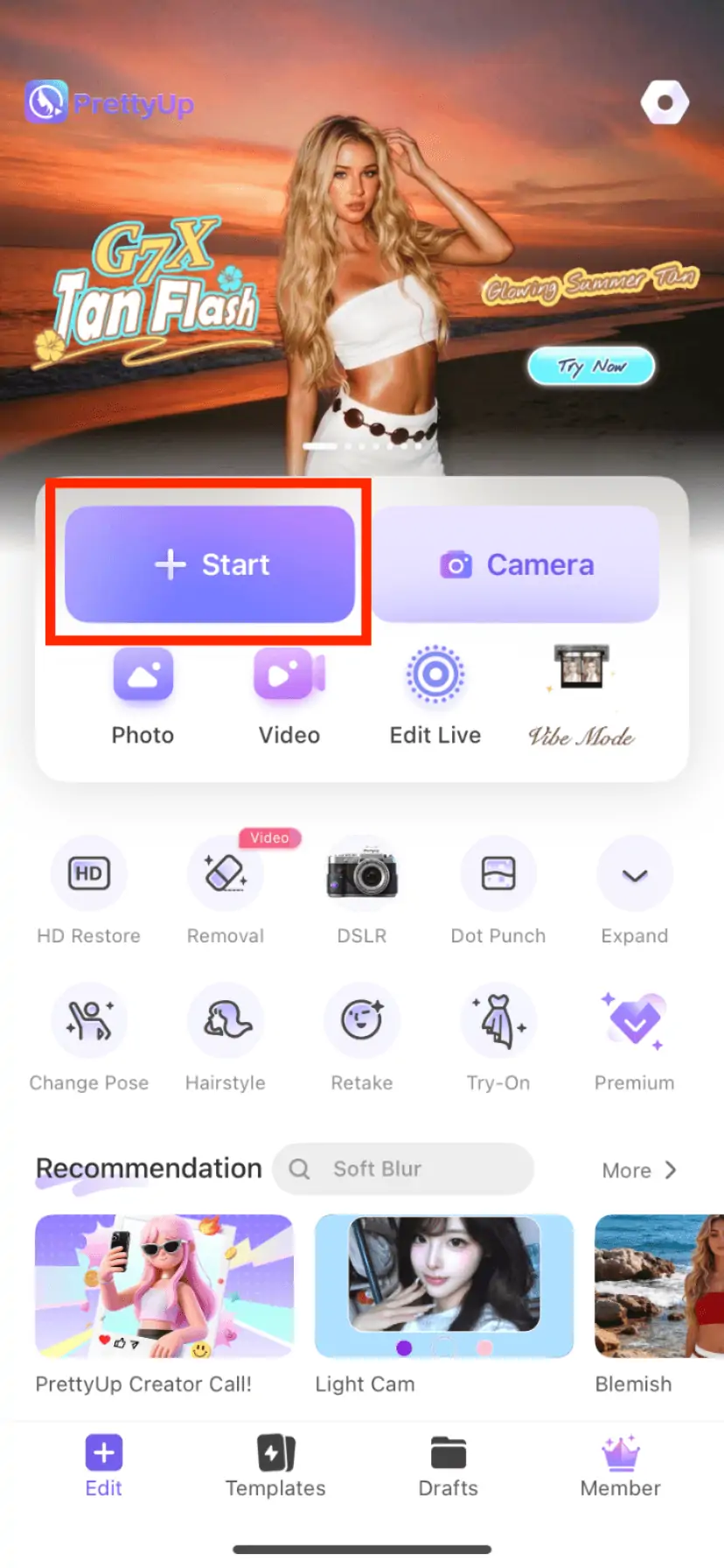
Step 1: Choose a photo or video
Open PrettyUp and select the photo or video you want to edit.
Step 2: Enter the Body Adjustment Function
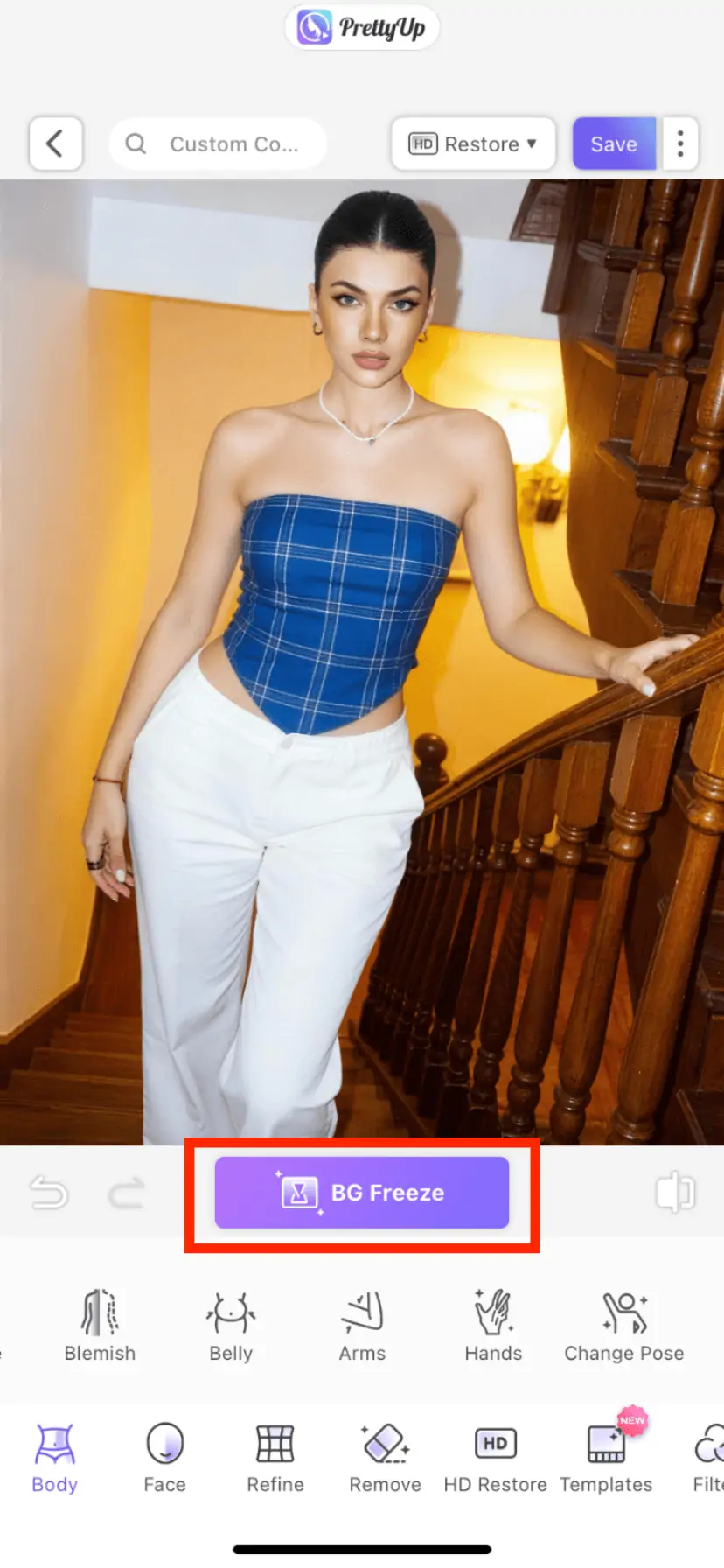
Find the 'Body' module in the bottom toolbar, click to enter, and then choose the adjustment function you need, such as slimming, hip enhancement, or one-click body beautification.
Step 3: Locate the Background Protection Switch
Find the background protection button in the adjustment interface, and click it to repair the distorted background.
Step 4: Adjust your body and compare the results
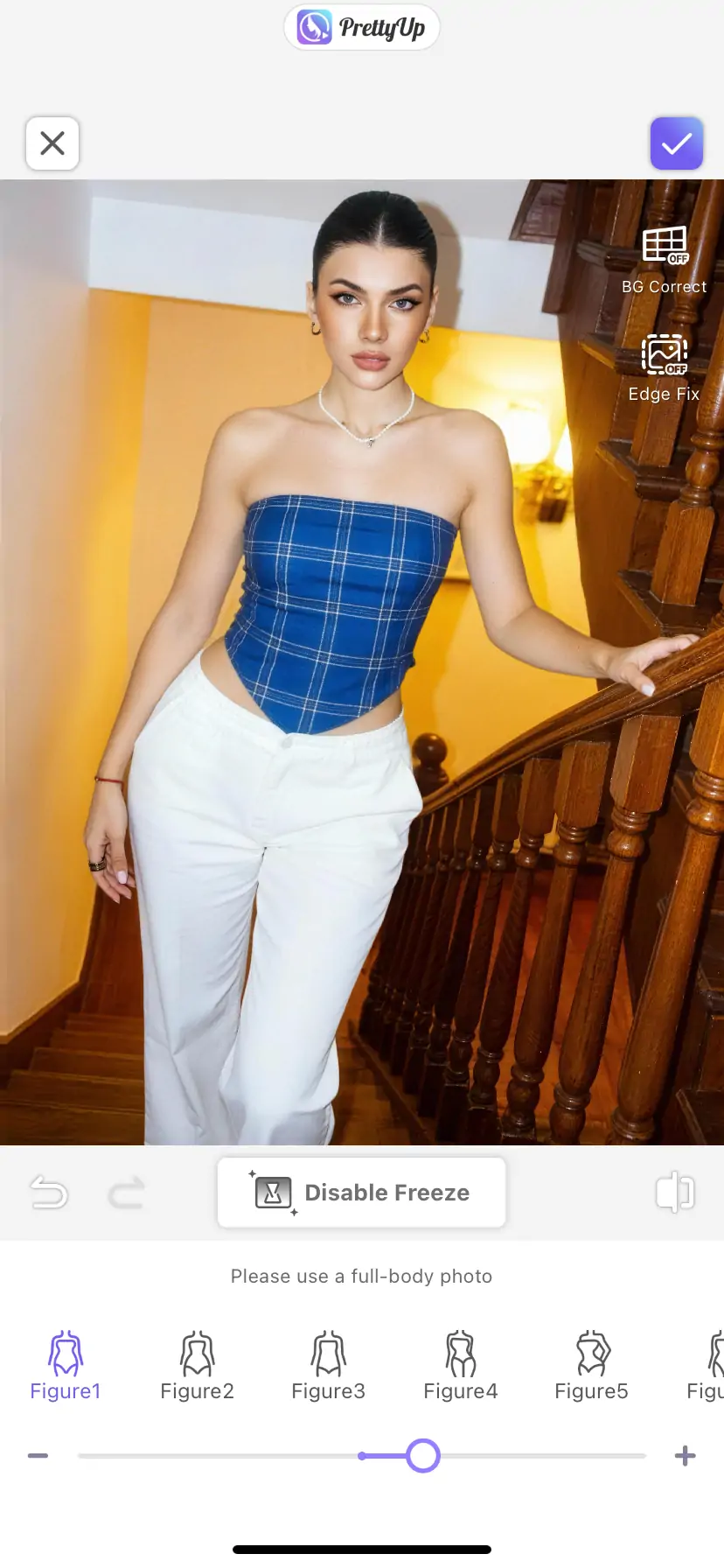
With background protection enabled, use the intensity slider to adjust the body shape. You can try switching the background protection on and off to compare the differences before and after enabling it, and choose the most natural way to present it.
More Usage Tips
Tip 1: Be sure to enable it during major adjustments. When making significant body adjustments (such as noticeably slimming the waist or lifting the hips), the risk of background distortion is higher, so it is recommended to always enable background protection. For minor tweaks, you can decide flexibly based on the actual effect.
Tip 2: Pay attention to the complexity of the background. In scenes where the background has clear straight lines (such as indoor walls, floor seams, door and window frames), the effect of background protection is particularly obvious. In outdoor natural backgrounds (such as grass or sky), even if background protection is turned off, distortions are not easily noticeable, so it can be turned on or off as needed.
Technique 3: Use in combination with multiple body functions. Background protection can work in conjunction with all body adjustment functions such as slimming, hip shaping, and one-click body beautification. First, enable background protection, and then use different functions for combined adjustments, maintaining a natural background throughout.
Tip 4: Maintain Consistency When Editing Videos. It is recommended to keep background protection on throughout the video editing process to ensure that the background effect is consistent in every frame, avoiding issues such as flickering or sudden background changes.
Summary
Background protection allows your body adjustments to truly achieve 'only change the body, not the background.' Whether you are adjusting the waistline, optimizing the hips, or shaping the whole body, the background remains naturally unchanged. The one-click switch provides flexible control, allowing you to freely balance between natural and protected.
Next time you edit photos, don't worry about background distortion. Open PrettyUp, turn on background protection, and make your body adjustments look so natural that no traces can be seen.