
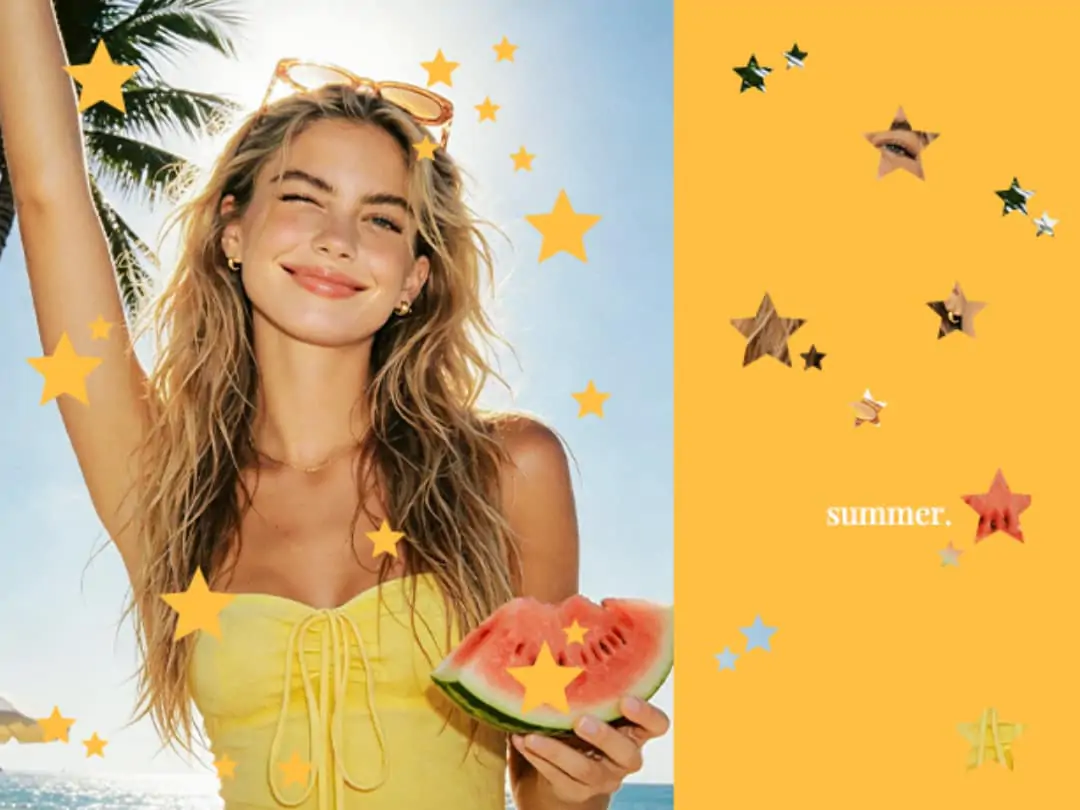
Have you ever felt that ordinary photos edited over and over always end up with the same kind of color grading? Try a different approach and turn your photos directly into a polka dot collage artwork. PrettyUp's Dot Punch feature can transform your photos into collage art made of dots—not just a simple filter, but a complete change in the visual language of the image. Moreover, you’re not just applying an effect; you can fine-tune each parameter or directly choose a preset template to create a finished piece with one click.


What is Polka Dot Collage?
Polka dot collage is a creative image editing tool in PrettyUp. It transforms your photos into collage effects composed of numerous dots, with the position, size, color, and arrangement of each dot generated based on the original image information. The overall effect retains the contours and colors of the original image while presenting a unique halftone artistic feel.
You can choose between two options:
- Select a preset template: Nine built-in templates in different styles, can be applied with one click, suitable for those who do not want to adjust each one individually
- Customize all parameters: Start from scratch, freely control composition position, aspect ratio, shape, size, quantity, variation, arrangement, and background to create a completely unique visual effect
Polka Dot Collage Effect Display
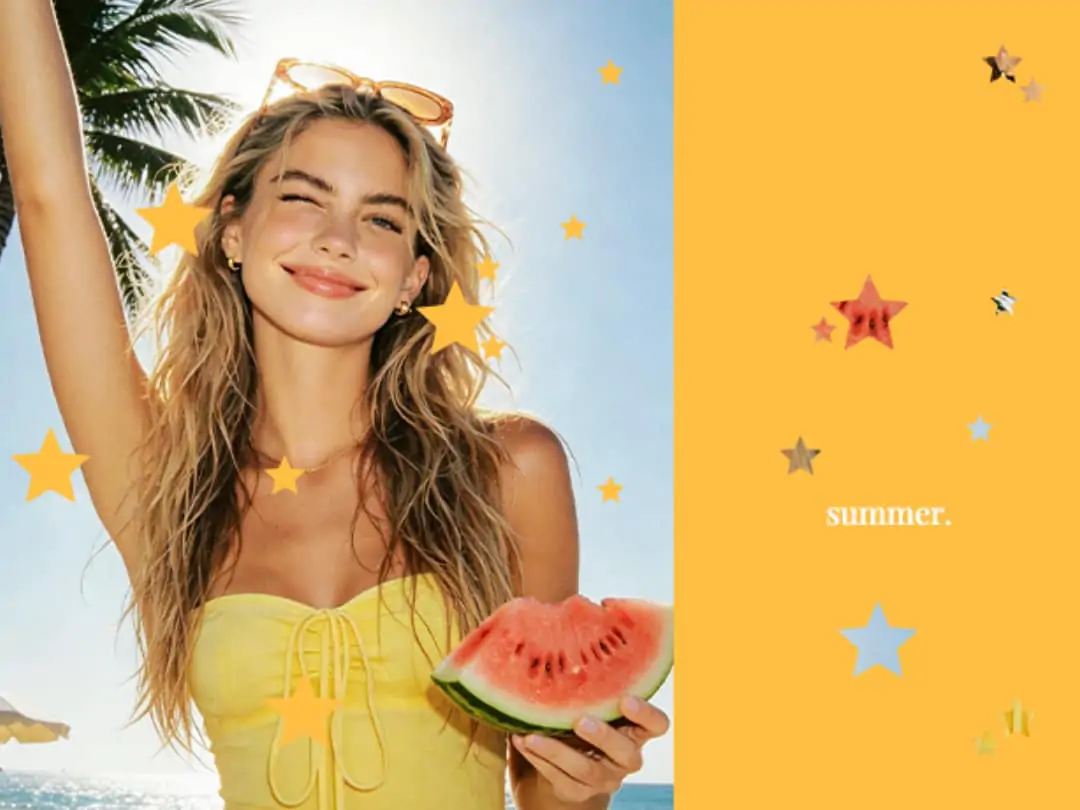
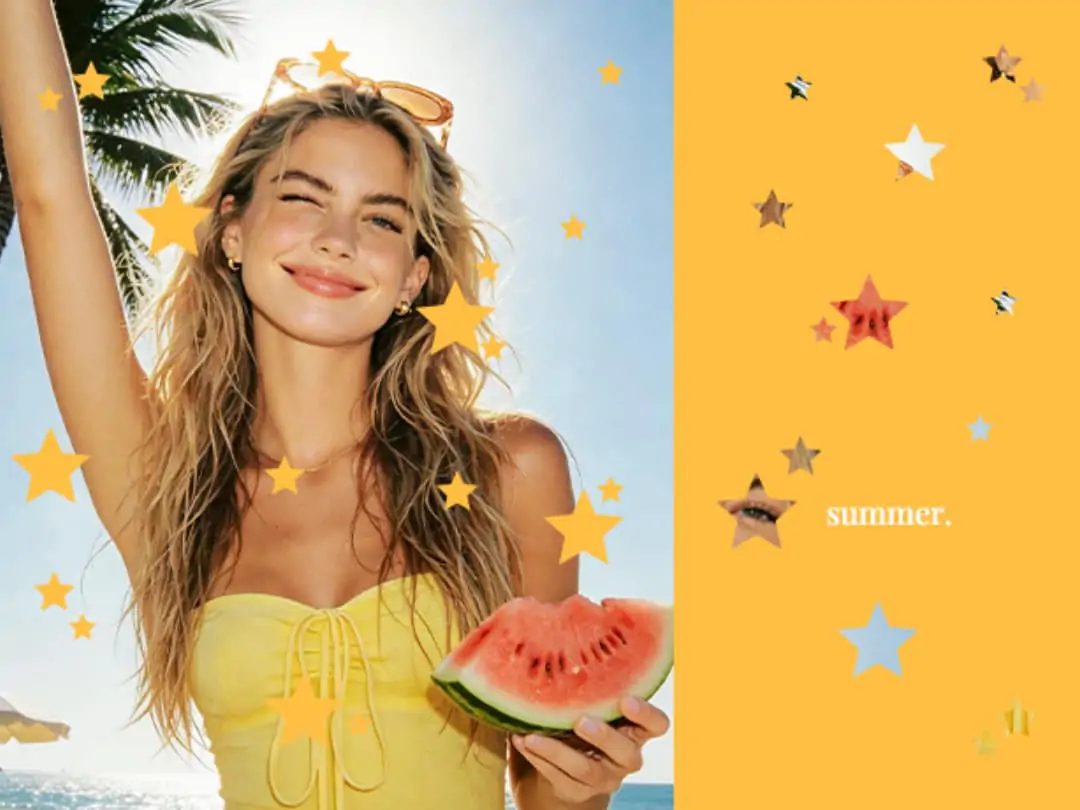
The same photo, choosing different presets or adjusting different parameters, produces completely different effects.
Preset Templates — 9 styles cover different visual effects, ranging from regular grids to random scatter, from dense small dots to sparse large dots. Suitable for situations where you don't want to spend time fine-tuning and want to quickly produce results. Each preset can serve as a starting point for further adjustments.
Custom Parameters — If you want an effect that is entirely your own, you can adjust each parameter one by one:
- Composition Position: Adjust the distribution balance of the polka dots in the frame
- Aspect Ratio: Change the overall width-to-height ratio of the collage
- Shape: Not just circular, can be changed to other shape elements
- Size: The size of the control point; larger points are more impactful, smaller points are more delicate.
- Quantity: The total number of dots; the more dots, the richer the details in the image
- Variation: The degree of differentiation between points, making the image look more natural or more orderly
- Layout: Regular arrangement or random distribution, affecting the overall visual rhythm
- Background: Support different background fills to make polka dots stand out more or blend in better
Here are some typical combination effects:
How to use polka dot collage?
The operation process is very intuitive, and the production speed is fast.
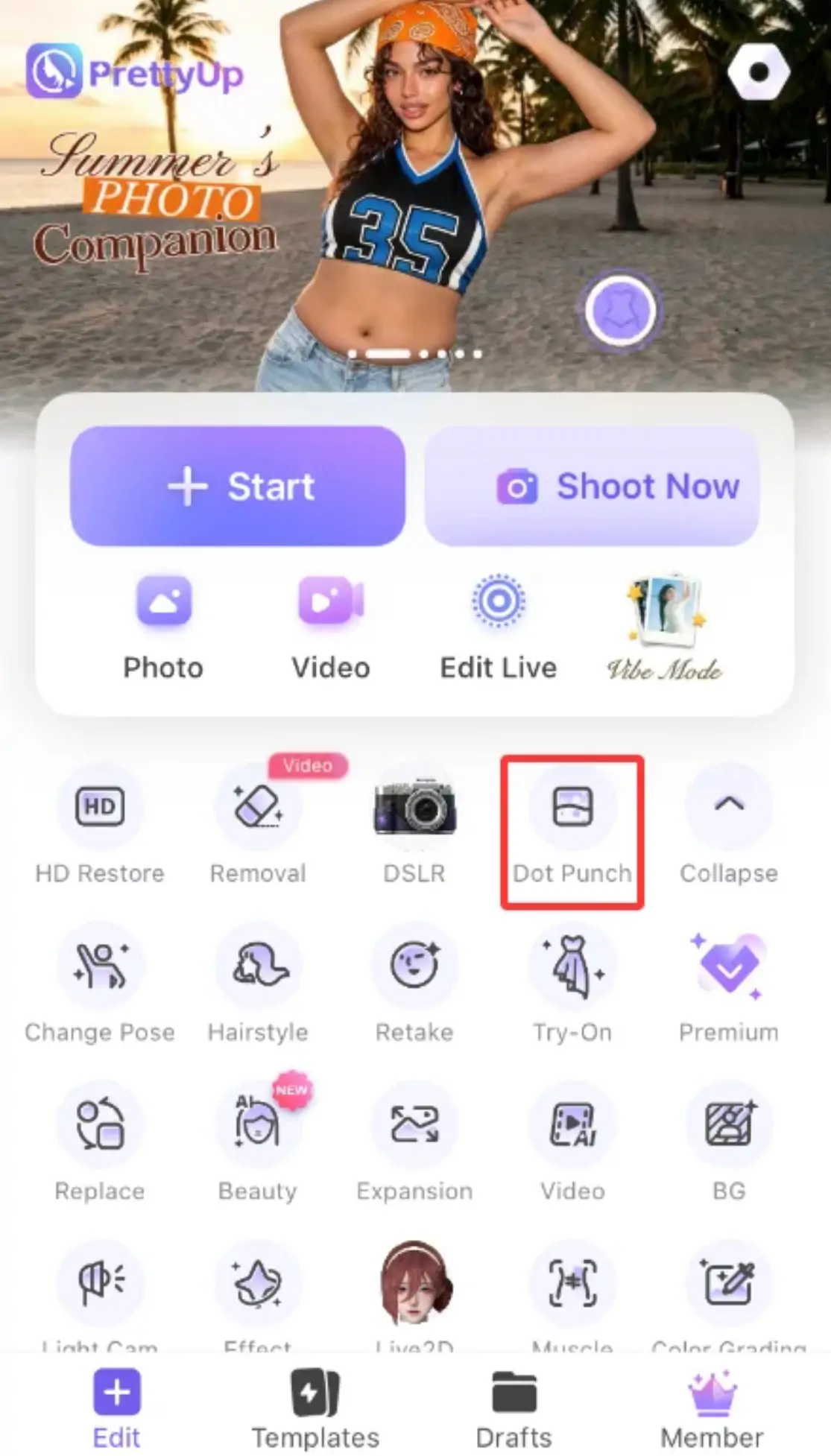
Step 1: Open PrettyUp, and on the main interface, directly click 'Polka Dot Collage'
Step 2: Select a photo from the album
Step 3: Choose a way to start making
- Method A — Choose a preset template: Browse 9 preset effects, click to apply, and quickly preview different styles
- Method B — Custom Parameters: Adjust the composition position, screen ratio, shape, size, quantity, variation, arrangement, and background one by one, with real-time preview of changes
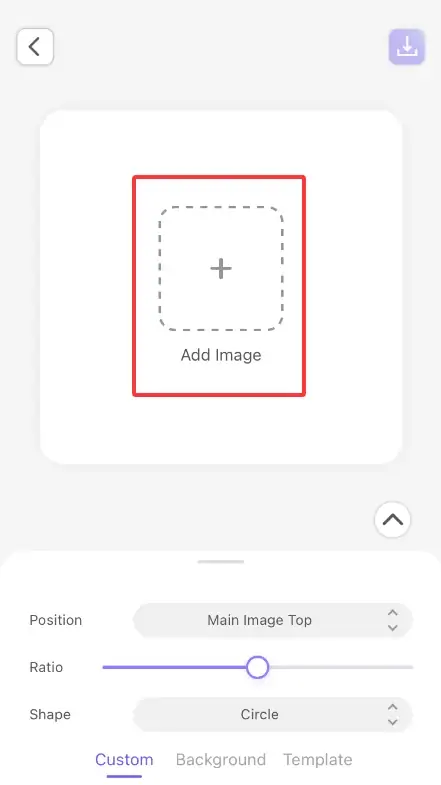
Step 4: Once satisfied with the effect, save it to the album or share it directly to social media platforms
You can switch between presets and custom settings at any time—you can first choose a preset template you like and then further adjust the parameters; the two are not mutually exclusive.
More Tips
Choosing the Right Photo Doubles the Effect — Photos with clear contours, prominent subjects, and obvious color contrasts work best. Portraits, still life, and city street scenes are all very suitable for dot collages. If the photo is too cluttered or the subject is unclear, the dot effect will appear rather messy.
Modify First, Then Collage — If you want the final result to be more refined, you can first use PrettyUp's color adjustment or background blur features to process the photo, making the subject more prominent and the colors more unified, and then proceed to the dot collage to generate the final effect.
Parameter Combination Suggestions — If it is a portrait, it is recommended to use medium to large-sized dots with regular arrangement, which can better preserve facial contours; if it is a landscape or street scene, small-sized dots with random variation can present richer image details. Try different combinations, and you will find your own style.
Share on social media — The visual effect of polka dot collage is highly recognizable on social media platforms, making it suitable for cover images, profile pictures, or creative post content. After creating the image, it can be directly shared on Instagram or TikTok within PrettyUp.
Summary
Polka dot collages turn an ordinary photo into a brand new visual expression. Nine preset templates let you get started quickly, and eight customizable parameters allow you to adjust endlessly. From composition to layout, every detail is up to you. No design experience is needed, no extra tools are required, just open PrettyUp to start creating.
Download PrettyUp and try the polka dot collage feature to turn your photos into your own polka dot art.