 WEB
WEB
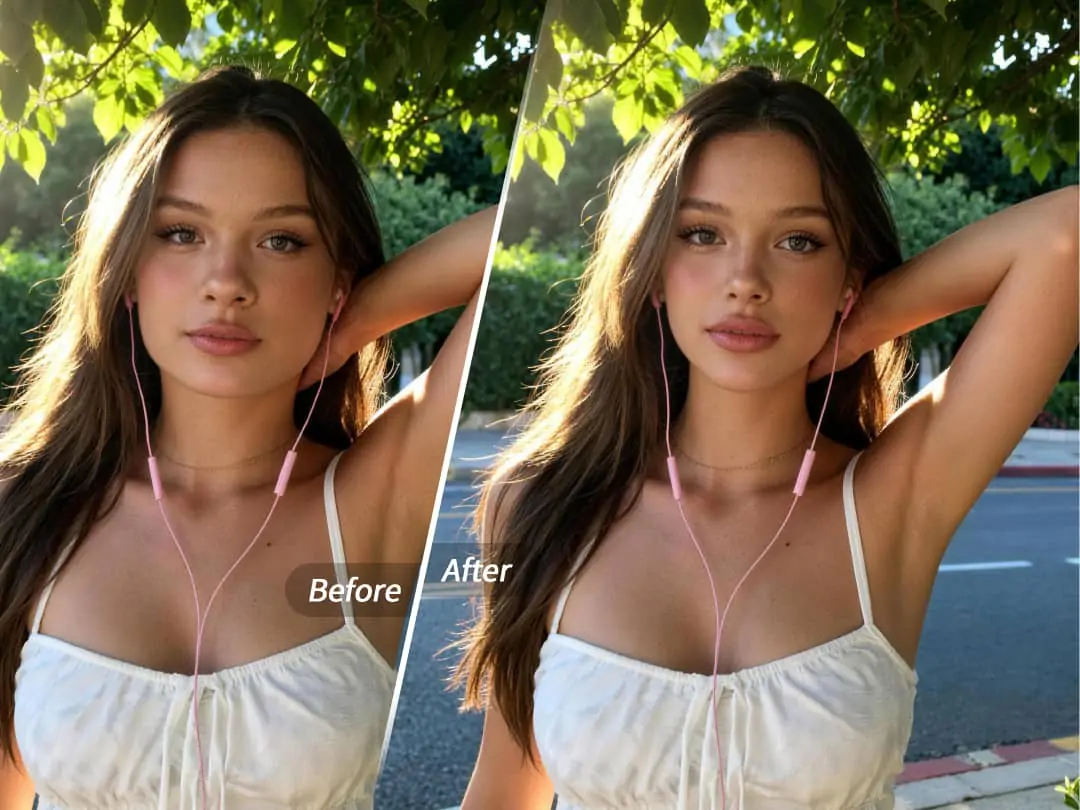
Have you ever taken a selfie where the camera made your face look wider, or watched a short video where one angle made your features feel less balanced than they do in real life? Most of the time, it is not about looking different. It is about fixing small distortions from lighting, lens angle, expression, and motion.
PrettyUp Face Shaping helps you refine those details in a controlled, natural way. You can adjust face shape, nose, brows, eyes, and lips in photos and videos, including group shots with multiple faces. The goal is not to turn everyone into the same face. The goal is to help your portrait look closer to the version you actually want to share.


What is Face Shaping?
Face Shaping is a PrettyUp portrait retouching feature designed for natural face and facial feature adjustments. It gives you flexible control over the parts of the face that often change how a portrait feels on camera.
- Refine face shape and facial features: Adjust the face contour, nose, brows, eyes, and mouth to make the overall portrait look more balanced.
- Works for photos and videos: Use it on selfies, group photos, talking videos, beauty clips, and other portrait content.
- Supports multiple faces: Edit group photos or videos while checking each person separately for a more consistent final look.
- Quick presets for faster edits: Start with a preset when you want a polished result without adjusting every detail manually.
- Manual sliders for finer control: Enter specific facial areas and use sliders to control the strength of each change.
Tip: Face Shaping is most effective when you use it to correct camera distortion or refine details gently. Small changes usually look more realistic than extreme edits.
What Can Face Shaping Adjust?
The strength of Face Shaping is that it does not lock you into one fixed effect. You can start with a one-tap preset, then fine-tune the areas that matter most for your photo or video.
Face shape: Adjust cheeks, jawline, and facial contour so the face line feels more balanced. This is useful when a selfie lens makes the face look wider or when a video angle changes the contour during movement.
Face shape adjustment example showing natural changes to cheeks, jawline, and contour.
Nose: Refine the visual proportion of the bridge, tip, or sides of the nose. A subtle adjustment can make the center of the face feel more defined without changing your natural look.
Nose adjustment example showing detail refinements around the bridge, sides, and tip.
Brows and eyes: Eyes affect energy, while brows affect expression and facial balance. Face Shaping can help the eye and brow area look more coordinated in both photos and videos.
Brows and eyes adjustment example showing changes to eye expression, brow shape, and facial balance.
Mouth: Adjust lip shape, mouth corners, and expression details. For selfies, group shots, and portrait videos, small changes around the mouth can make the whole expression feel more natural.
Mouth adjustment example showing natural lip shape and expression refinement.
Face Shaping is also useful beyond single-person selfies. In group photos, you can check different faces one by one. In videos, you can preview motion to make sure the result still feels natural when the person smiles, turns, or speaks.
How to Use Face Shaping
Step 1: Import a photo or video. Open PrettyUp and choose the photo or video you want to edit. You can start with a selfie, a group photo, or a recorded portrait video.
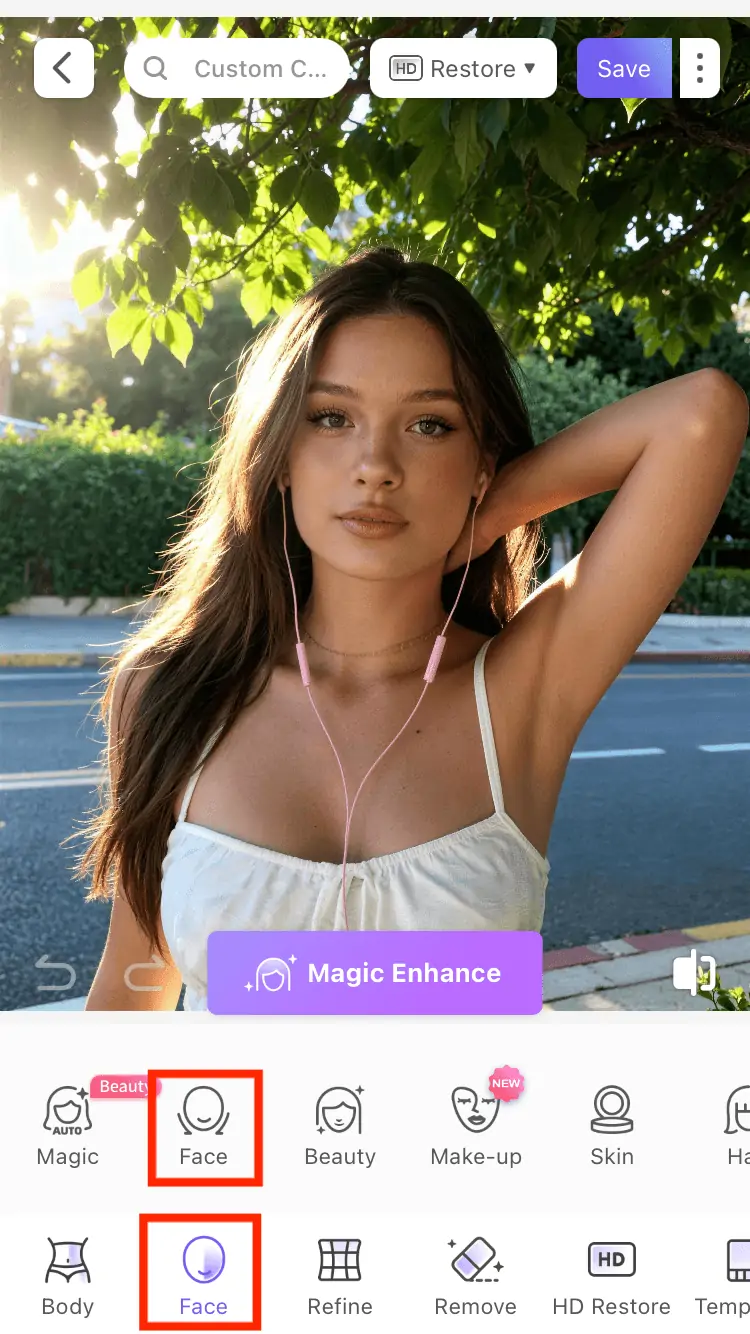
Step 2: Enter Face Shaping. From the main editing page, go to Face - Face Shaping to start adjusting face shape and facial features.
Face Shaping entry example showing the path from the main editor to Face Shaping.
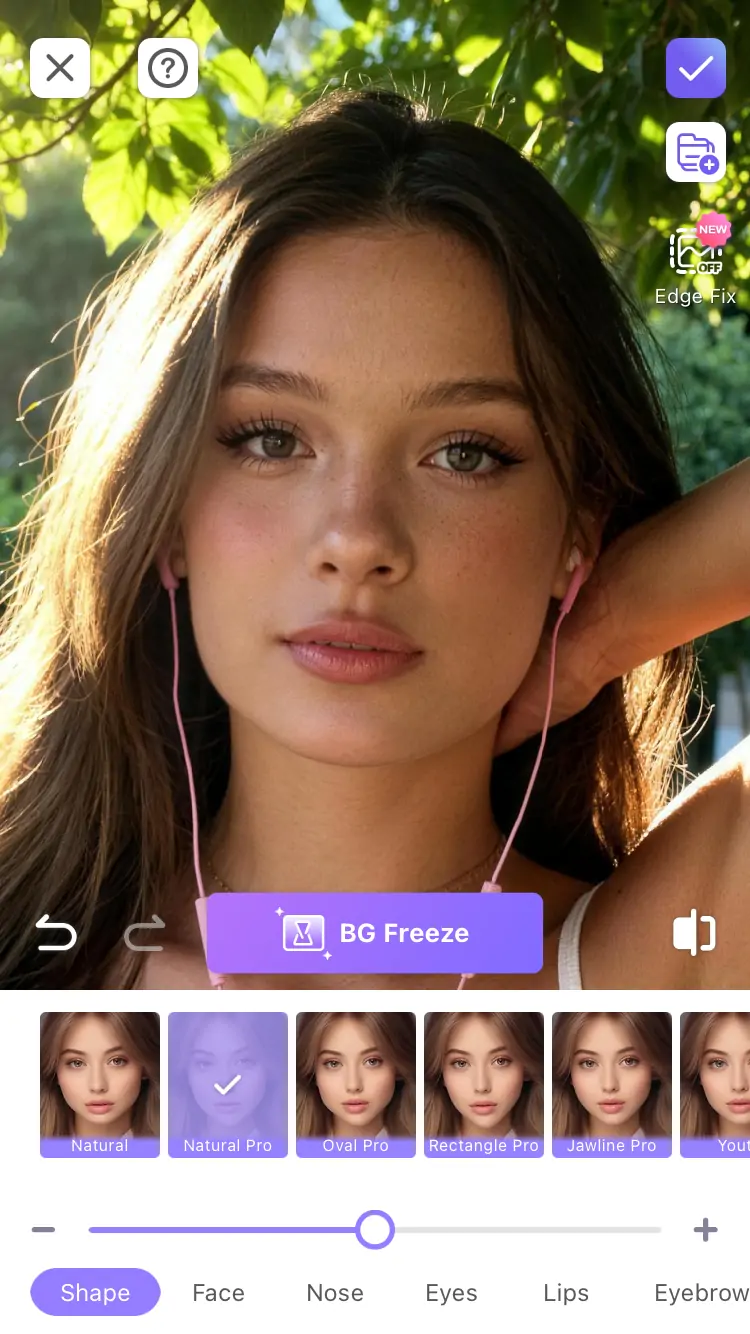
Step 3: Choose a preset or manual adjustment. Use a preset if you want a quick result. If you want more control, enter specific areas such as face shape, nose, brows and eyes, or mouth, then adjust the details manually.
Preset and manual adjustment example showing Face Shaping options and local editing controls.
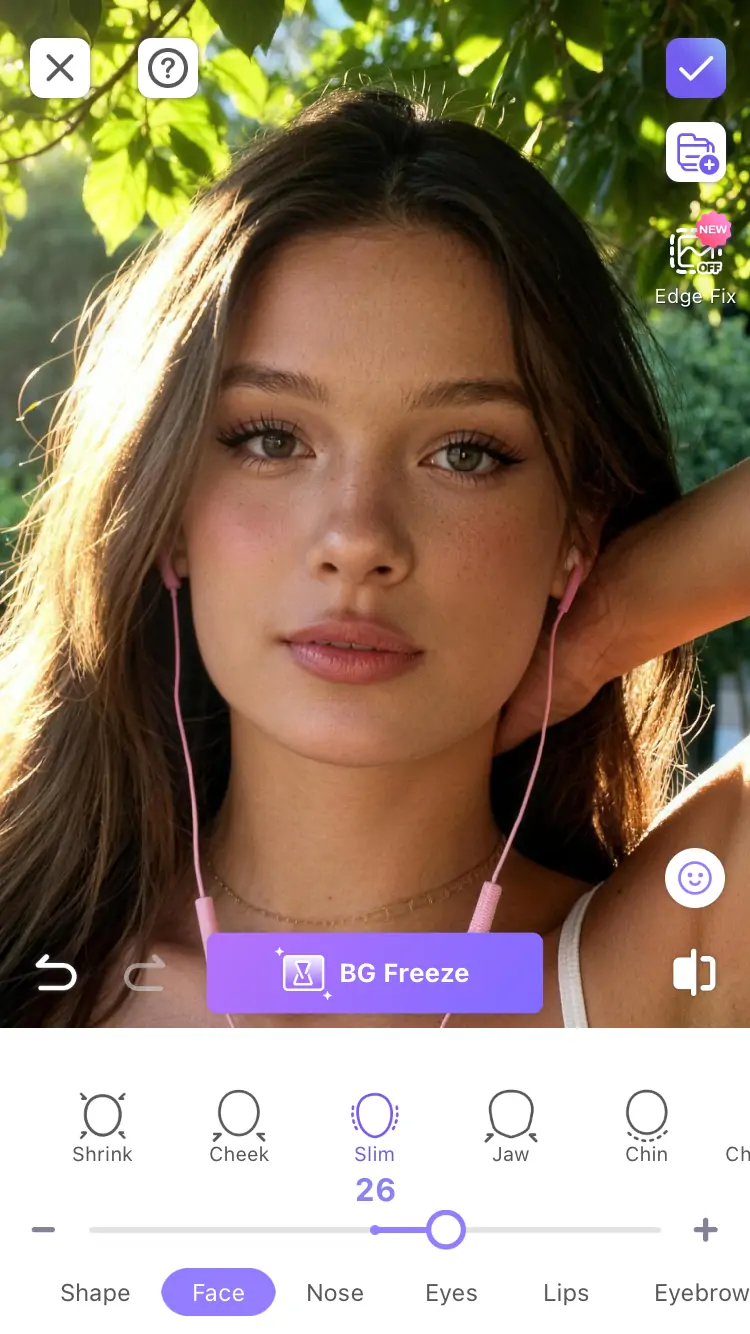
Step 4: Control strength with sliders. Move the slider to set how subtle or visible the adjustment should be. Start low, compare the result, and increase only when the portrait still looks natural.
Slider adjustment example showing strength control in Face Shaping.
Step 5: Preview group faces and video motion. Compare before and after for photos. For group content, check each person. For video, play the clip before saving so expressions, head turns, and movement still look natural.
Group face and video preview example for checking natural Face Shaping results.
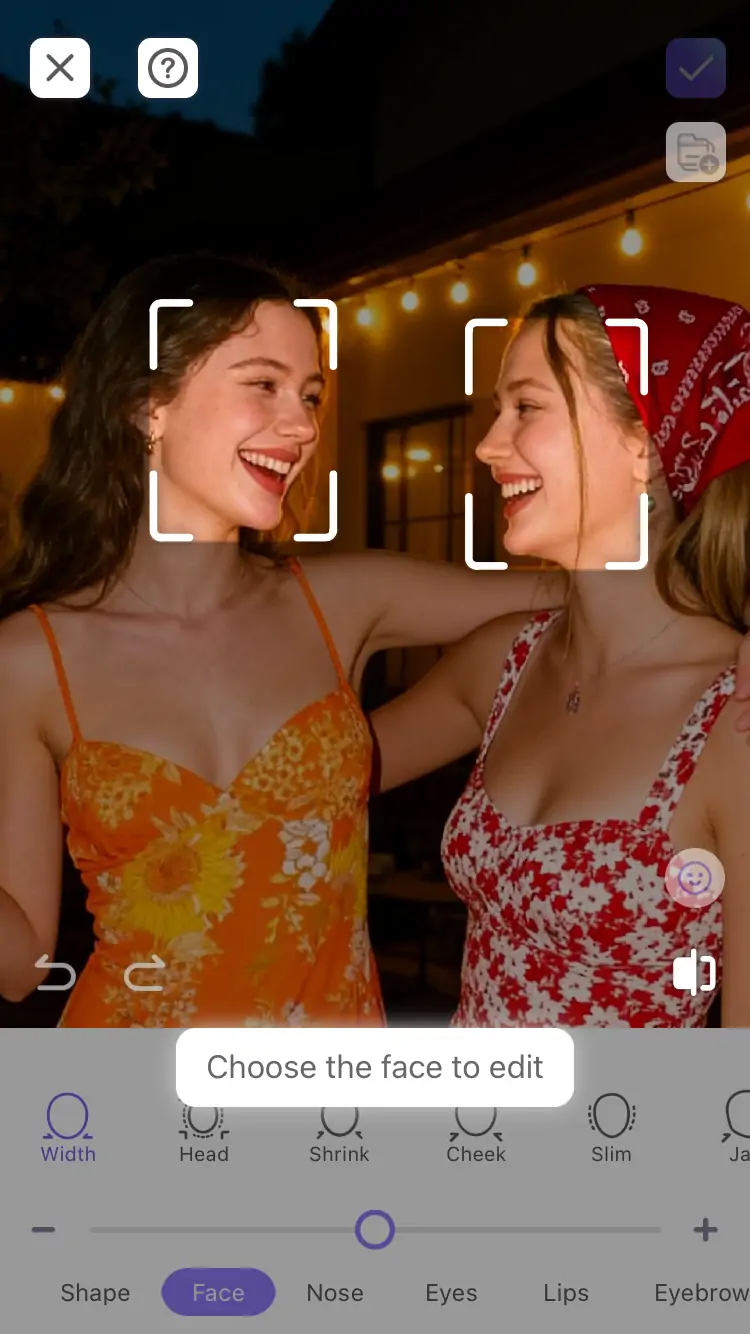
If you want freer manual liquify edits, you can also use the Reshape entry on the main editing page. Treat it as an extra tool for local line adjustments, while Face Shaping remains the core feature for structured facial edits.
More Tips
Tip 1: Start with a preset. If you are not sure where to begin, apply a natural preset first, then adjust the specific areas that matter most.
Tip 2: Keep the strength low at first. A small change often makes a portrait feel more polished while still keeping your real expression.
Tip 3: Check facial balance, not only the contour. When you adjust face shape, also look at the nose, eyes, brows, and mouth so the full face still feels coordinated.
Tip 4: Review each face in group content. Different people may need different strengths. Check everyone separately before saving.
Tip 5: Always preview videos in motion. A still frame can look good while movement tells a different story. Play the video to confirm the result.
Tip 6: Combine it with other PrettyUp tools. After Face Shaping, you can refine skin, makeup, filters, or body proportions to complete the overall portrait style.
Conclusion
Face Shaping is a practical portrait retouching tool for anyone who takes selfies, group photos, or short videos. It supports photos, videos, and multiple faces, and it lets you adjust face shape, nose, brows, eyes, and mouth with presets or manual sliders.
Next time a camera angle or video frame makes your face look less natural than you expected, open PrettyUp and try Face Shaping. Download PrettyUp now and make your portraits look more balanced, polished, and ready to share.