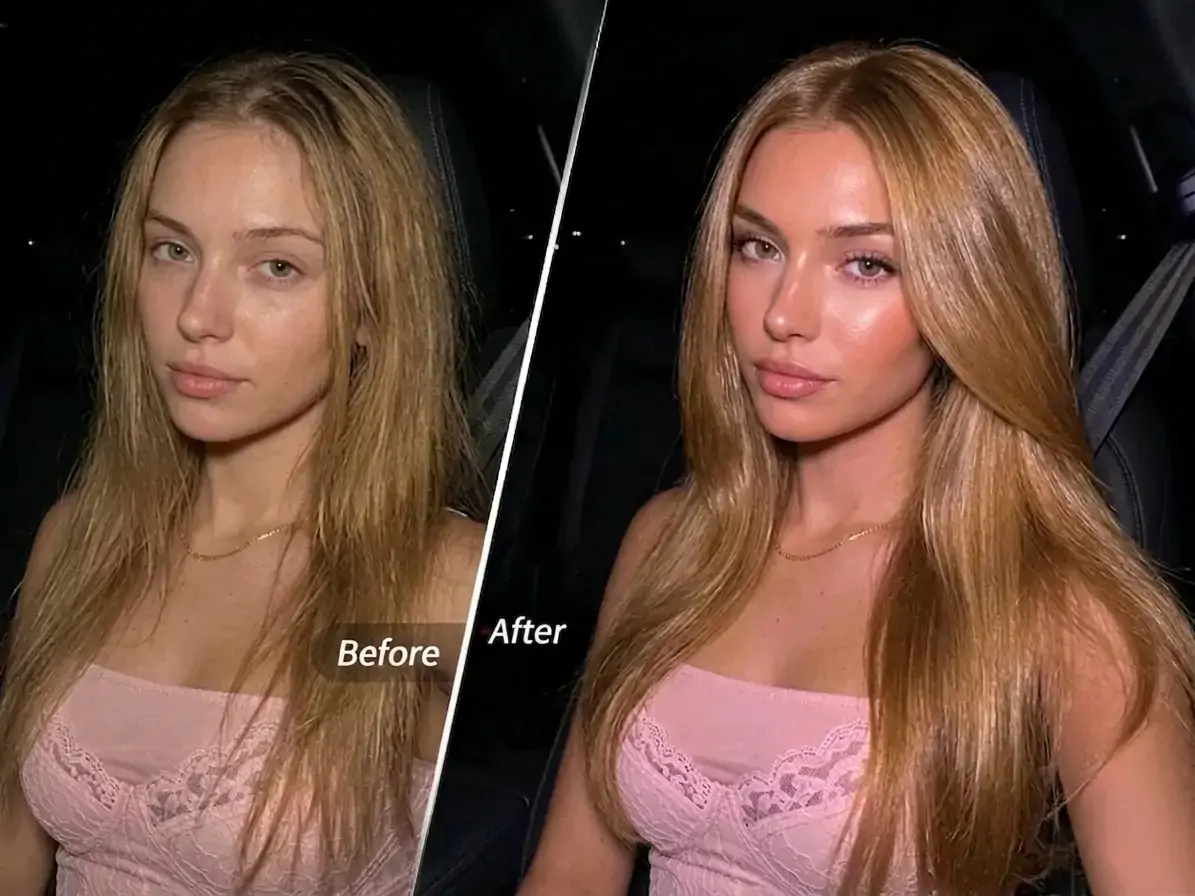
Everyone wants smooth, full-looking hair, but reality is often less than perfect. A visible part, frizz, thin-looking hair, and lack of shine stand out even more in photos and videos. Whether you're taking selfies, group shots, or appearing in short videos, the condition of your hair directly affects your overall look. PrettyUp's Hair Retouch feature helps solve all of these concerns in one place, so your hair looks its best on camera.


What Is Hair Retouch?
PrettyUp Hair Retouch is an AI-powered hair enhancement tool for both photos and videos. It covers the full hair area from the part to the ends and includes four core retouch modules to meet different hair editing needs:
- Part Fix: Automatically detects the hair part area and offers Dense and Natural presets to make the part look more even and less noticeable
- Smooth: Tames frizz and flyaways with one tap. Auto mode works fast, while Manual mode lets you refine specific areas
- Hair Volume: Choose from three intensity levels: Slight, Natural, and Full, so your hair looks thicker and fuller
- Shine: Freely adjust the intensity to add a natural, healthy shine to the hair
Hair Retouch works well on different hairstyles and hair colors. Whether your hair is straight, curly, or dyed, you can get natural-looking results.
What Results Can Hair Retouch Create?
Part Fix
Hair part issues are a common concern, especially under strong lighting when the part can look wider than usual. The Part Fix module offers Dense and Natural presets. Dense mode is ideal when the part is wide and needs more noticeable filling, while Natural mode delivers a softer transition so the part blends more seamlessly with the surrounding hair.
Smooth
Frizz and flyaways are easily exaggerated on camera, and the Smooth module helps tame them effectively. Auto mode is great for quick edits and restores a sleek look with one tap. Manual mode lets you work on specific areas only, so you can preserve the hair's natural texture.
Hair Volume
Thin-looking hair can make many people feel less confident in photos. The Hair Volume module provides three intensity levels: Slight, Natural, and Full. Slight is best for a subtle boost, Natural works well for everyday touch-ups, and Full suits scenes where you want a more noticeable volume increase. You can switch flexibly between the three until the result looks most natural.
Shine
Healthy shine is an important sign of beautiful hair. The Shine module supports adjustable intensity, so you can add just the right amount of gloss based on your original hair condition and personal preference, without making it look overly shiny or unnatural.
How to Use Hair Retouch?
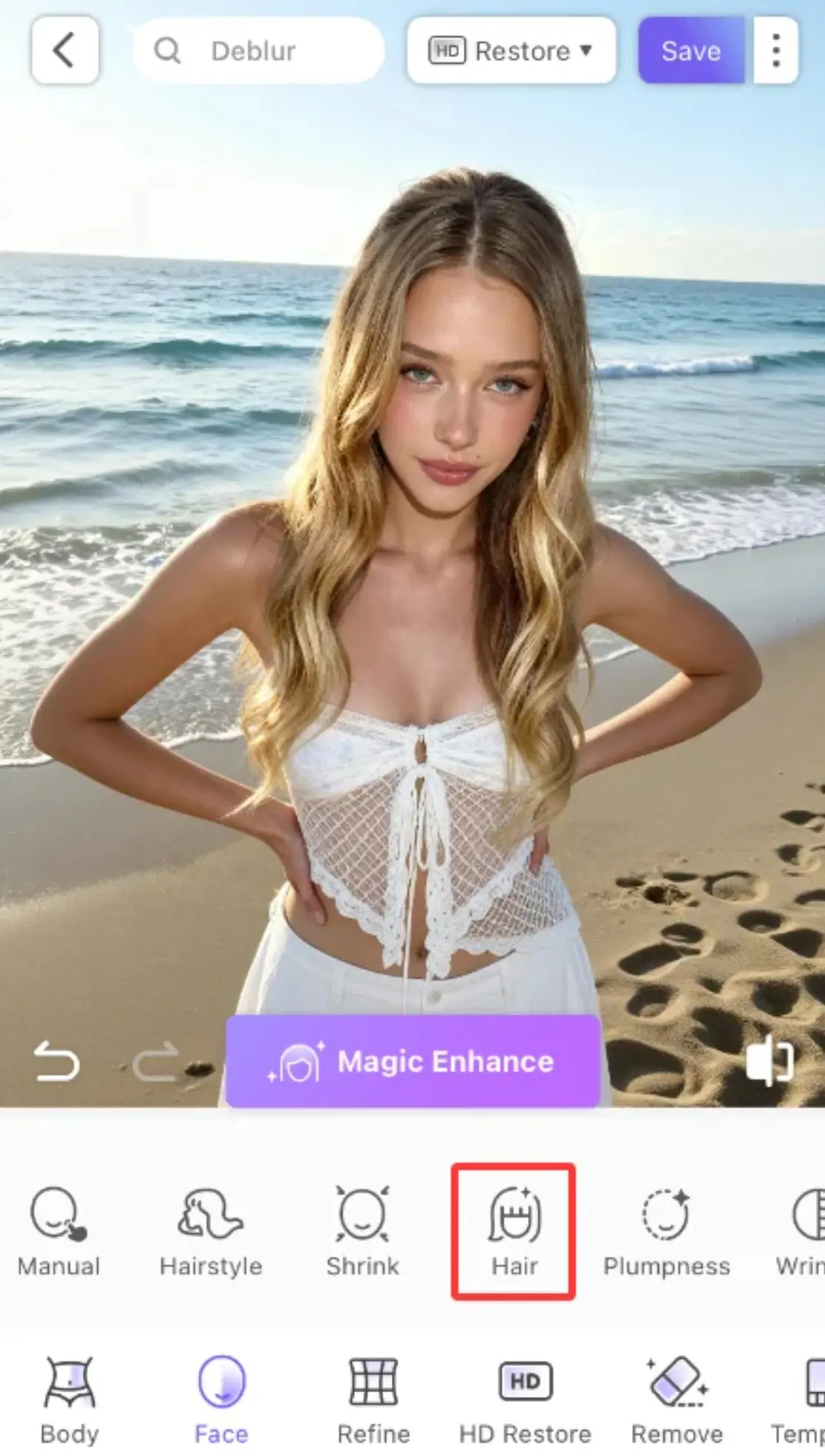
Feature entry: Tap Hair on the main editing page.
Choose a retouch module and adjust the settings
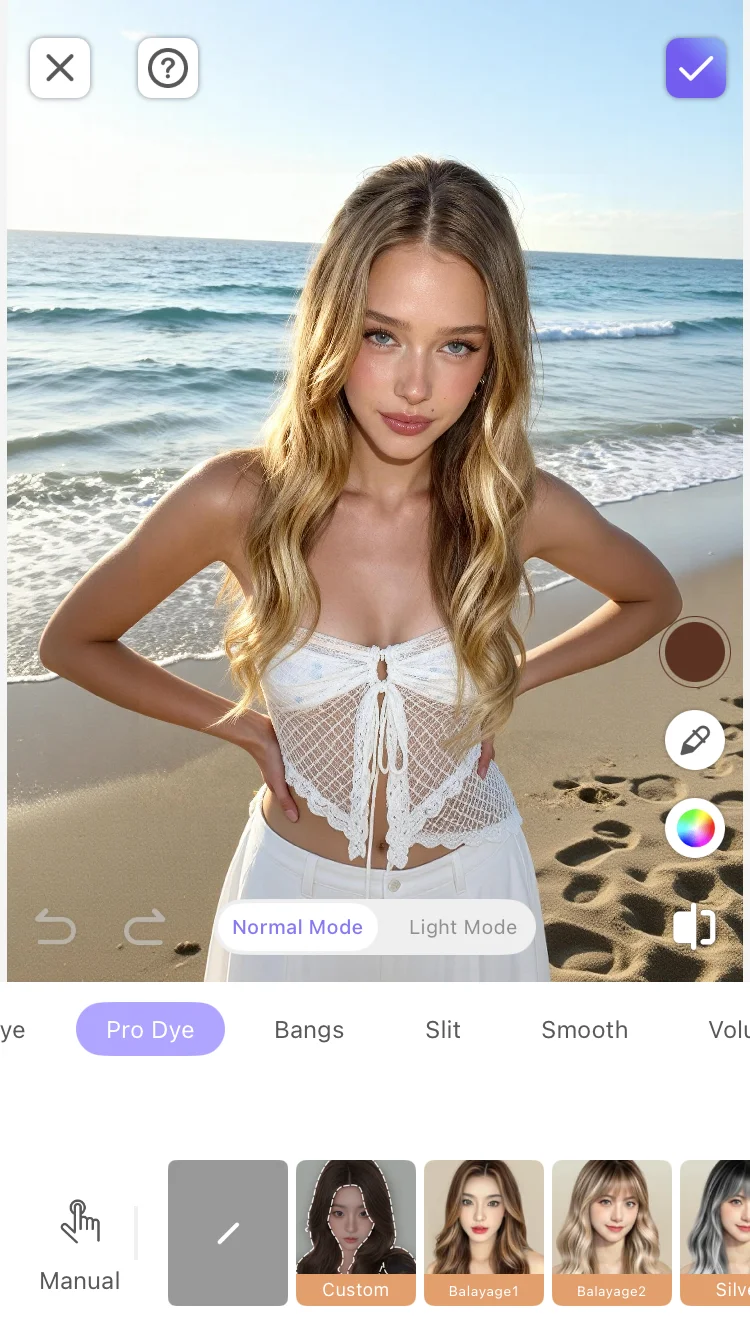
After entering Hair Retouch, you will see four modules: Part Fix, Smooth, Hair Volume, and Shine. Tap each module as needed, then choose the corresponding preset or drag the intensity slider to adjust it. All four modules can be used together to create the most ideal result.
When adjusting Part Fix, you can preview the difference between Dense and Natural modes. For Smooth, it is recommended to try Auto mode first, then switch to Manual mode only if you need more precise local editing. For Hair Volume, start with Slight and gradually increase the intensity to avoid over-editing in one step. For Shine, begin around the middle level and fine-tune after previewing the result.
Confirm the result and save
Once the adjustments are done, tap confirm to apply all retouch effects. Preview the overall result, and if you're satisfied, save the photo or video.
More Tips
Tip 1: Works for both photos and videos. Hair Retouch supports not only static photos but also video editing. If your hair is not in its best condition before filming a short video, you can retouch the video directly in PrettyUp to keep every frame looking polished.
Tip 2: Start with lower intensity. For the Hair Volume and Shine modules, it is recommended to begin with a lower intensity and gradually build up until you get the desired result. This helps avoid over-editing and keeps the effect natural. The Auto mode in the Smooth module is already optimized, so in most cases you can get great results just by using it directly.
Tip 3: Use it with other features. Hair Retouch can be combined with PrettyUp features like facial reshaping and beauty filters. Adjust your facial features and skin tone first, then retouch the hair so the final result looks more balanced and cohesive overall.
Tip 4: Choose flexibly for different lighting conditions. When shooting outdoors, hair part issues are often more noticeable, so you can prioritize the Part Fix module. For indoor shoots, the Shine module can help compensate for hair that looks dull because of insufficient lighting.
Summary
PrettyUp Hair Retouch gives your hair a complete enhancement solution, from fixing the part and smoothing frizz to boosting volume and adding shine. Whether you're editing a photo or a video, just a few simple steps can make your hair look smooth, full, and glossy on camera. Download PrettyUp now and experience the appeal of one-stop hair retouching.