 WEB
WEB
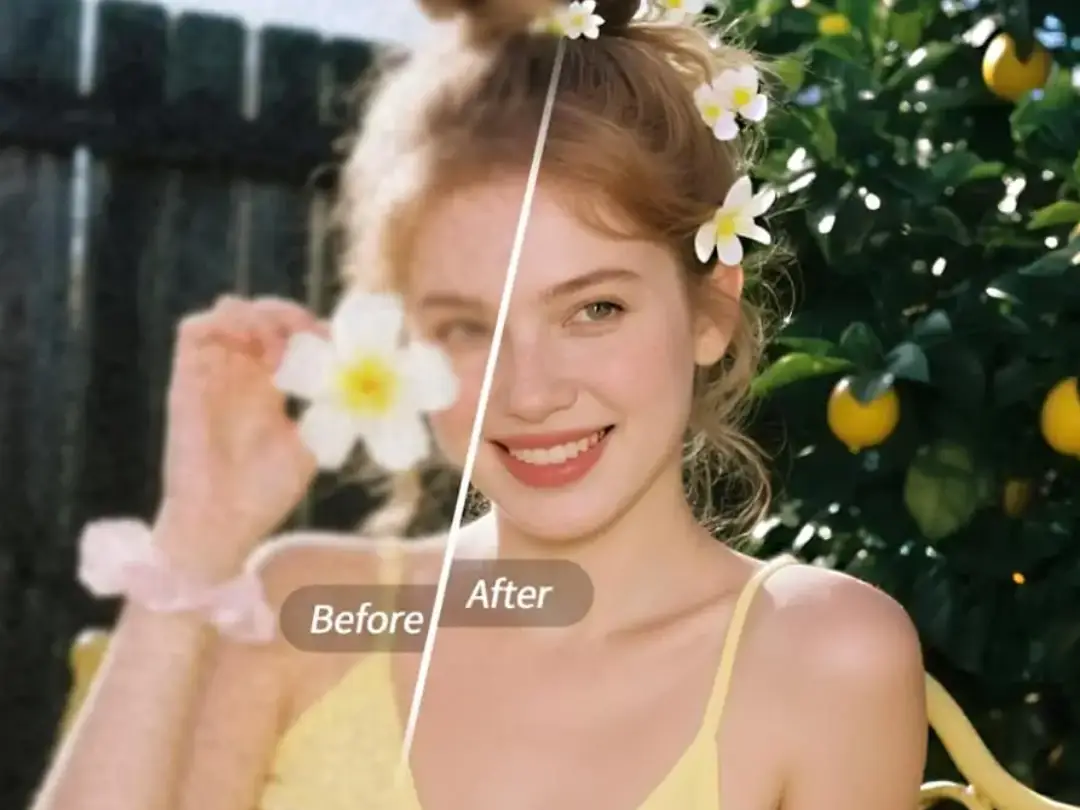
You find an old photo with a great composition and expression, but the quality is too blurry; you shoot a video, but low light makes the footage look soft; you finish retouching a portrait, zoom in, and notice the eyelashes are smudged together, lip makeup details are gone, and the highlights are blown out into flat white. These quality issues can ruin otherwise great shots. PrettyUp HD Restore helps you sharpen everything with one tap, for both photos and videos.


What Is HD Restore?
PrettyUp HD Restore is an AI quality enhancement tool for both photos and videos, offering two main types of restoration options: general modes and scene modes.
Four general modes
- HD Mode: Improves overall image clarity and is ideal for basic quality restoration in everyday photos and videos
- Ultra HD Mode: Significantly boosts detail and brings the image to a higher-resolution level
- Portrait Mode: Optimized for portrait photos and videos to improve facial detail clarity
- Advanced AI: The highest-level quality restoration, focused on bringing back distinct eyelashes, refined lip makeup texture, and natural highlight glow, so close-up portraits show magazine-level detail
Three scene modes
- Cosplay Mode: Optimized for cosplay photography to restore costume textures, prop details, and makeup quality
- Stage Mode: Designed for stage photography and concert footage to improve image quality in low-light environments and make the subject clearer
- Product Photo Mode: Designed for e-commerce product shots to enhance product textures and edge sharpness
All modes support intensity adjustment, so you can freely control the restoration strength based on the original quality.
What Results Can HD Restore Deliver?
General mode results
HD Mode is great for everyday photos that look slightly blurry overall. One tap improves clarity and makes the image look cleaner and more vivid.
Ultra HD Mode goes further by greatly enhancing resolution details, making it ideal for images that need to be enlarged.
Portrait Mode is designed to optimize facial areas, making features look clearer and more natural.
Advanced AI Mode is the flagship effect of HD Restore. While improving overall image quality, it focuses on restoring the small details that are often lost: eyelashes go from a blurry clump back to individually defined strands, lip makeup texture and color are restored with precision, and highlights are no longer flat white but show natural luminous transitions. For close-up portraits rich in eye makeup and lip makeup details, Advanced AI Mode delivers a dramatic upgrade.
Scene mode results
Cosplay Mode clearly restores wig strands, costume fabric details, and the texture of props, making character photos more expressive.
Stage Mode effectively reduces noise and blur in low-light scenes, making subjects on stage clearer and more prominent.
Product Photo Mode improves product edge sharpness and material texture, giving product displays a more premium look.
Video restoration
HD Restore works not only for still photos but also for video clips. After restoration, blurry video footage gains a noticeable boost in overall clarity and richer detail. Video restoration supports all general modes and scene modes, and the same clip can be processed in batches without frame-by-frame editing.
How to Use HD Restore?
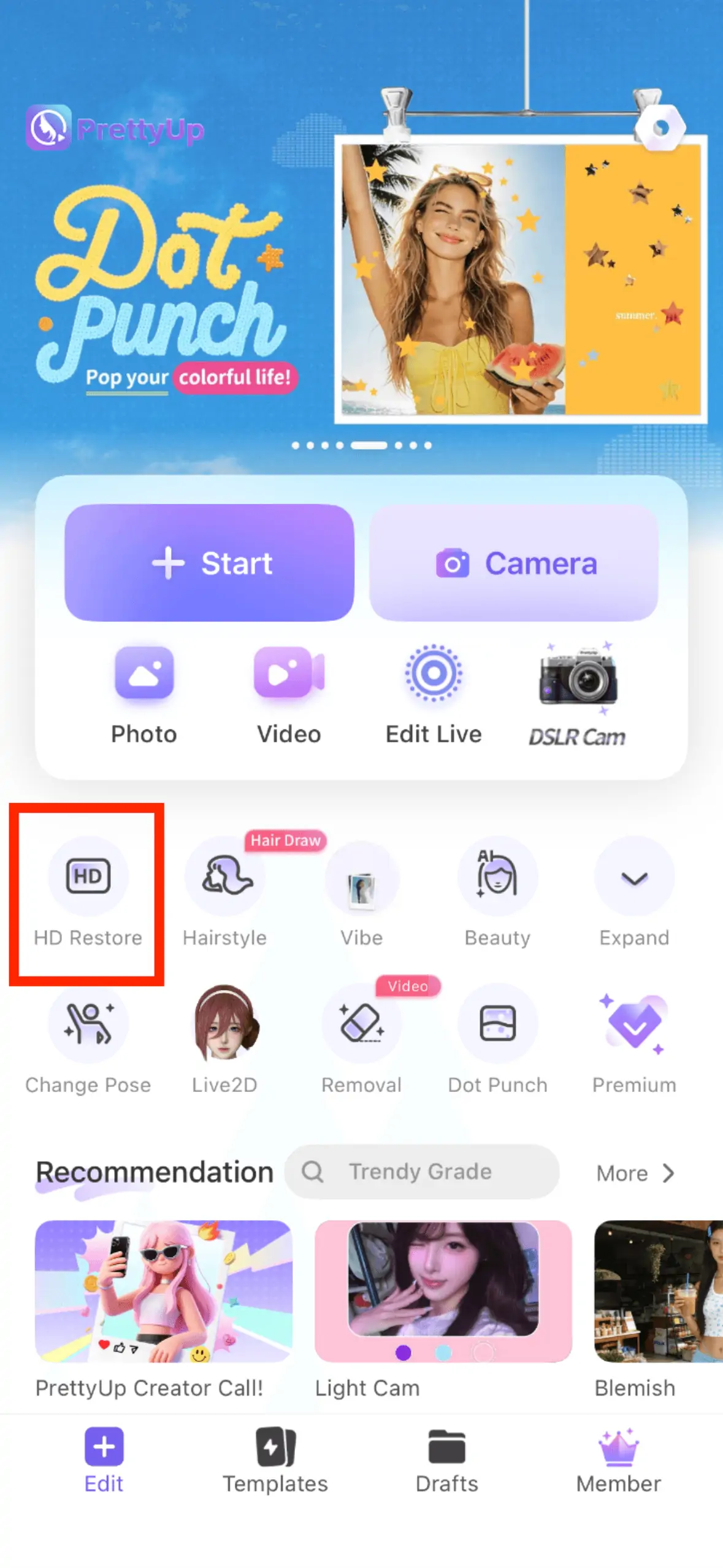
Feature entry: Tap HD Restore on the homepage.
Choose a restoration mode
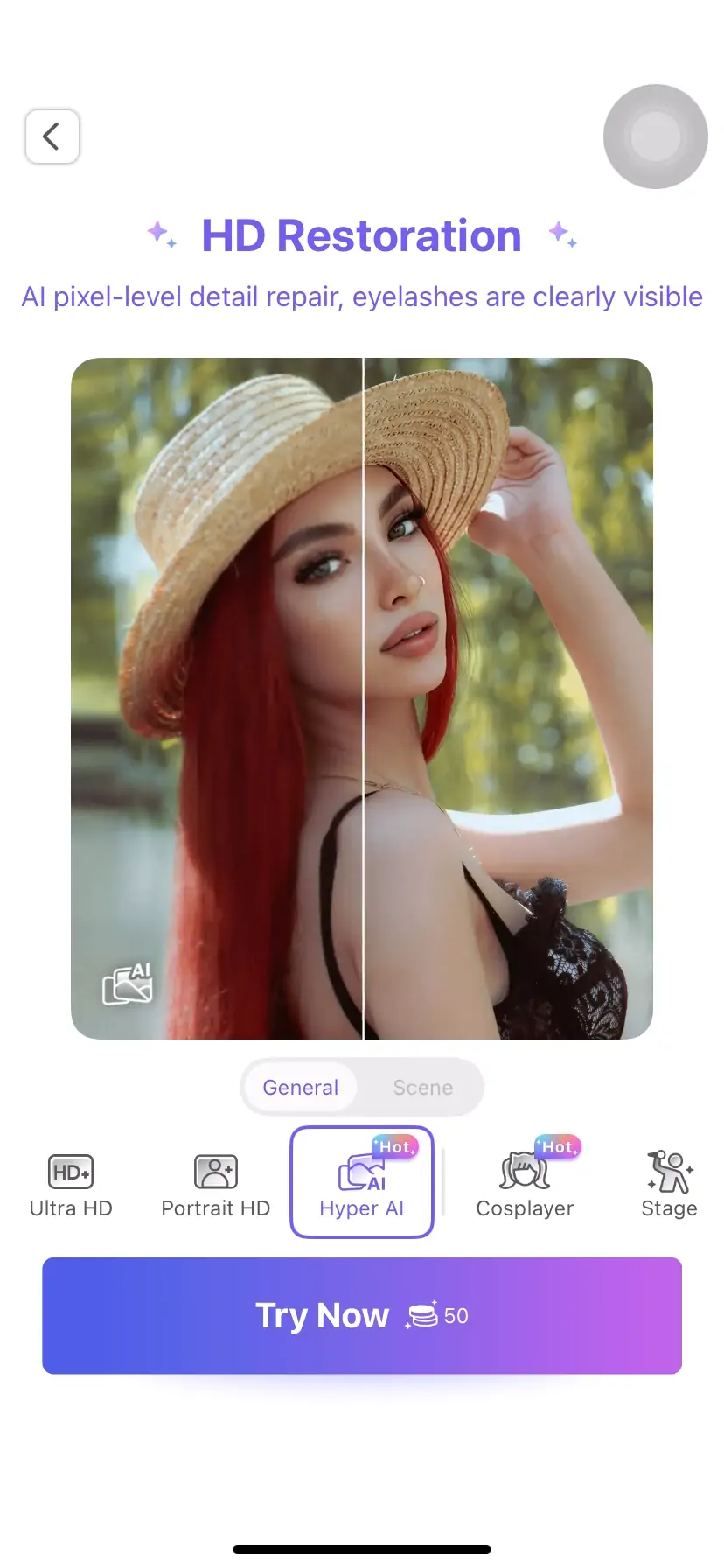
After entering HD Restore, first choose the mode type. For general photos or videos, pick from the general modes: HD Mode is suitable for basic restoration, Ultra HD Mode is ideal when you want a sharper result, Portrait Mode is best for portrait content, and Advanced AI Mode is perfect for close-up shots that need precise detail recovery.
If your content comes from a specific scene, you can directly choose a scene mode: Cosplay Mode, Stage Mode, or Product Photo Mode. The AI will apply targeted optimization based on the scene characteristics.
Adjust the intensity
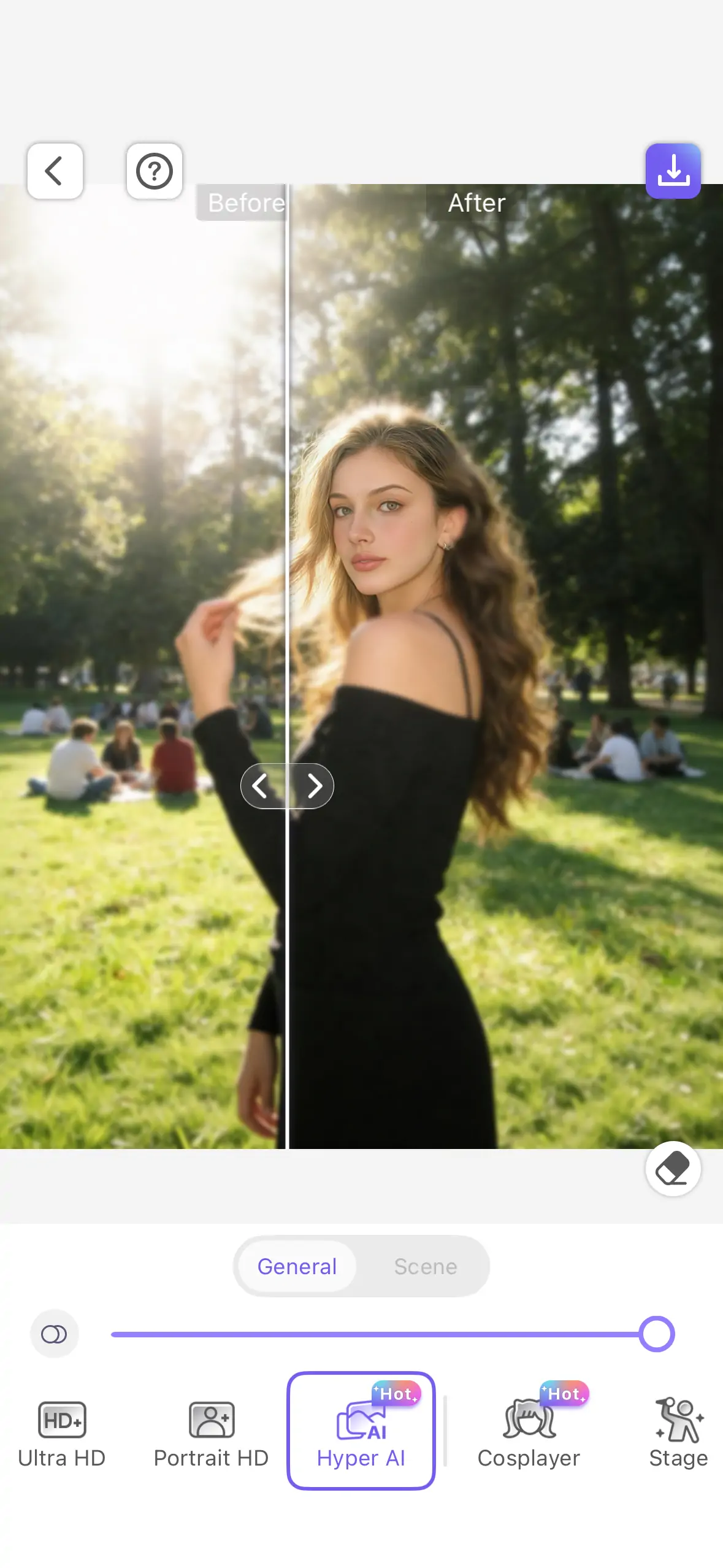
After choosing a mode, use the intensity slider to control the restoration strength. For content with poor original quality, it is recommended to start from the middle range and gradually increase until you are satisfied. For content that already looks decent but still needs extra clarity, a lower intensity can achieve a natural result.
Confirm and save
Preview the restored result and compare the before-and-after difference. If you are satisfied, save the photo or video.
More Tips for Better Results
Tip 1: Choose the mode based on your content. For everyday photos, HD Mode is usually enough. Use Ultra HD Mode for content that will be enlarged. For portrait close-ups, prioritize Portrait Mode or Advanced AI Mode, especially since Advanced AI is particularly strong at restoring eyelashes, lip makeup, and highlights. For cosplay, stage performances, or product photography, select the matching scene mode directly.
Tip 2: Adjust intensity from low to high. The HD Restore intensity slider is fully adjustable, so it is best to preview from a lower setting and increase gradually. Over-restoration may make the image look unnatural, especially in Portrait Mode where realistic skin texture should be preserved.
Tip 3: Preview a short clip before restoring video. Before applying HD Restore to a video, preview the effect on a short segment first and confirm the restored quality meets your expectations before processing the full video. For videos with frequent scene changes, you can restore different sections with different modes.
Tip 4: Use it together with other PrettyUp features. First use HD Restore to improve overall clarity, then combine it with face retouching, facial reshaping, and other tools for fine portrait editing. For restored content, you can also use color adjustment tools to further optimize the image and get the best result.
Conclusion
PrettyUp HD Restore brings clarity back to blurry photos and videos. Four general modes cover needs from basic enhancement to extreme detail recovery, while three scene modes provide targeted optimization for professional scenarios like cosplay, stage performance, and product photography. Advanced AI Mode focuses on restoring refined details like eyelashes, lip makeup, and highlights, and video restoration keeps moving footage just as crisp and sharp. Download PrettyUp now and make every photo and every video crystal clear.