 WEB
WEB
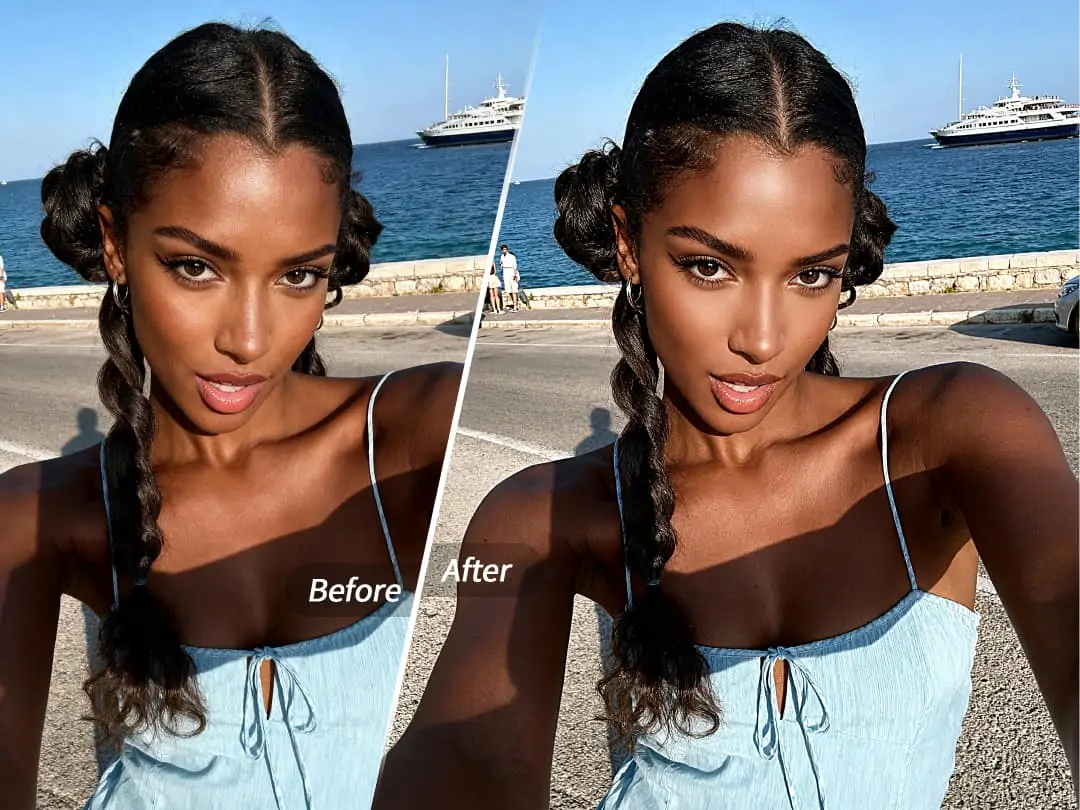
Whether it is a casual selfie or a carefully planned portrait shoot, we all run into moments like this: the light is not soft enough, your skin is having an off day, and fine lines or blemishes slip into the frame when you least expect them. You spend ages picking filters and tweaking colors, yet still feel like the person in the photo looks just a little less radiant than you hoped. The answer may actually be simple. What you need is not just color correction, but a beauty solution that truly understands your skin.


What Is Beauty Retouch?
Beauty Retouch is PrettyUp's smart facial skin-enhancing feature, designed to help users easily fix all kinds of common skin concerns and reveal a naturally clear, radiant complexion in both photos and videos.
Core Highlights:
- One-Tap Auto Beauty Retouch: It intelligently detects facial areas and automatically smooths skin, softens wrinkles, evens tone, and refines texture, so you can say goodbye to rough-looking skin in one tap. The system also adjusts settings automatically for different skin concerns, helping you get ideal results in the shortest time.
- Precise Manual Adjustments: If you want a more personalized finish, Beauty Retouch offers a full set of manual controls. You can independently adjust smoothing strength, wrinkle reduction, skin-evening range, texture detail, acne removal mode, dark circle reduction, and eye bag removal.
- Fine-Tune Every Area: It supports separate adjustments for different facial zones such as the eye area, nasolabial folds, the T-zone, and the cheeks. No matter which area you want to improve most, there is a control designed for it.
- Intensity Slider Control: Every adjustment comes with an intuitive slider, so you can easily control the retouching level and switch freely from a natural bare-skin look to a more polished edited style.
- Works for Photos and Videos: Whether you are editing a still image or a moving video, Beauty Retouch adapts smoothly so you can look your best in any format.
Tip: If you are not sure where to start, begin with Auto Beauty Retouch to optimize the overall effect in one tap, then manually fine-tune local details based on your personal preference.
Specific Effects / Best Use Cases for Beauty Retouch
Beauty Retouch covers the most common skin concerns in everyday photography and provides targeted solutions for each one.
Skin Smoothing and Wrinkle Reduction: It intelligently softens signs of aging such as fine lines, smile lines, and crow's feet while preserving the skin texture you still want to keep, avoiding the fake mask-like look that can come from over-smoothing. The final result is skin that looks smooth but still real.
Skin Tone Evening and Texture Refinement: It evens out skin tone, softens discoloration, and balances the difference between the T-zone and the cheeks, giving your skin a natural glow. The texture refinement feature keeps essential detail and dimension, so your photo does not look over-edited.
Acne Removal and Blemish Repair: It quickly identifies and softens temporary imperfections such as fresh acne marks and small spots, bringing back a clean and refreshed skin appearance. This feature is especially useful for emergency touch-ups before or after your period or after a late night.
Dark Circle and Eye Bag Reduction: It targets under-eye shadows and puffiness to make the eye area look brighter and more awake. Whether the issue comes from overtime, lack of sleep, or your natural features, it can make a visible difference.
Best Use Cases:
- Everyday life photos: For friend gatherings, travel check-ins, and food shots, it helps you get a healthy-looking glow with ease.
- Portrait photography: Whether it is an indoor studio session or an outdoor street shoot, it makes your complexion look more even and luminous.
- Video calls and livestreams: Real-time beauty retouch keeps you looking your best on camera.
- Short-form video creation: Add natural beauty retouch to your footage and make your content look more polished.
How to Use Beauty Retouch?
Step 1: Choose a Photo or Video
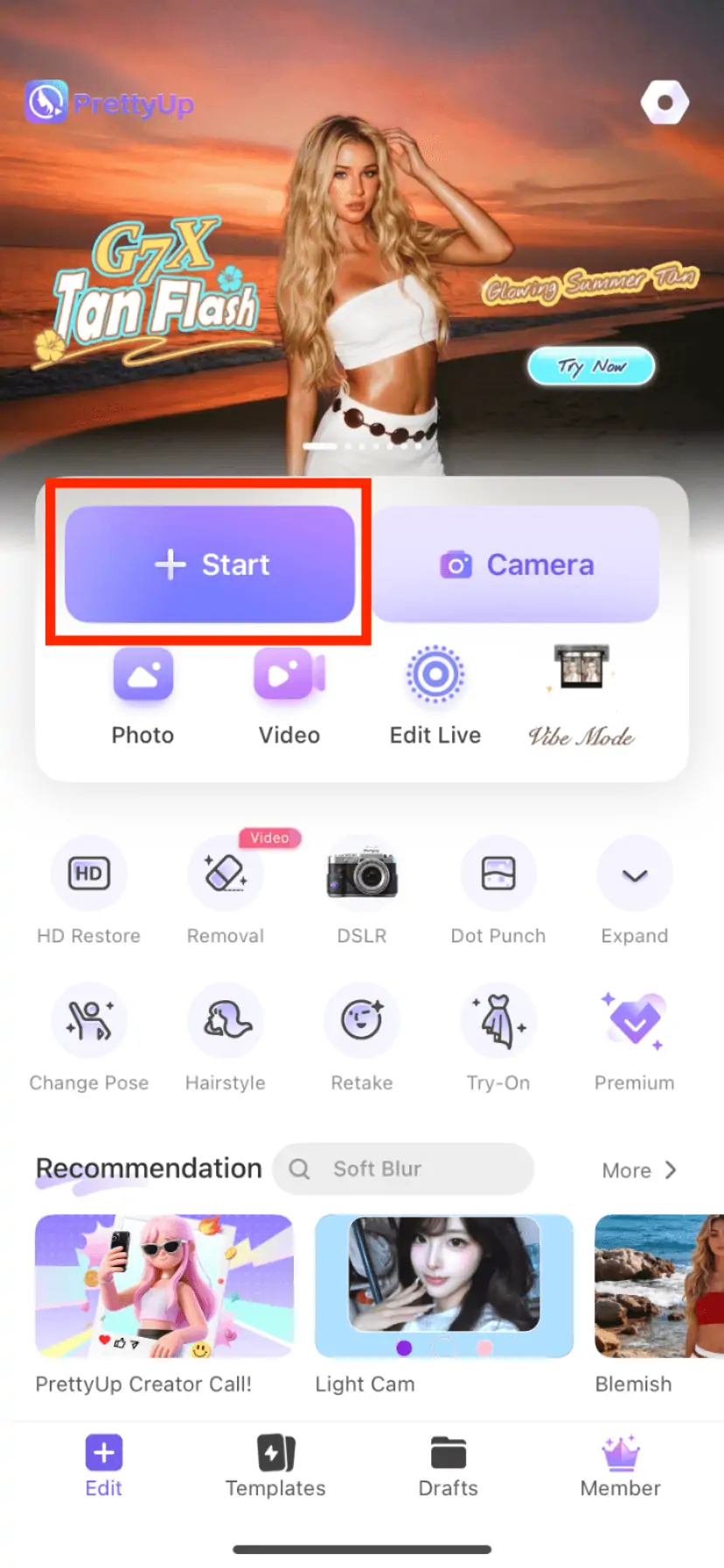
Open PrettyUp and select the photo or video you want to enhance. If you already have an editing project, you can also call up the Beauty Retouch feature directly from the current editing screen.
Step 2: Enter the Beauty Retouch Feature
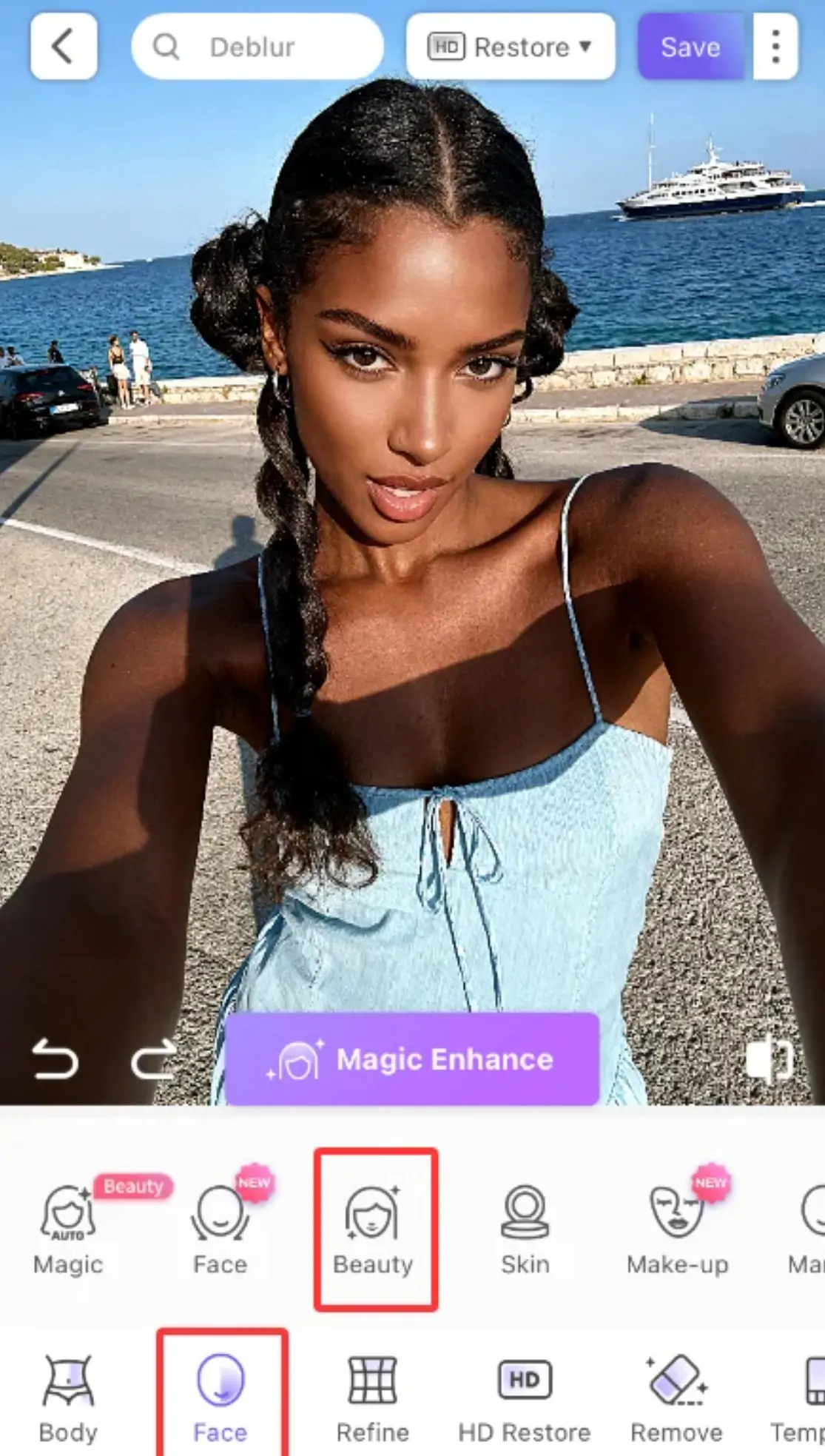
Find the "Face" section in the bottom toolbar. After entering it, locate the "Beauty Retouch" option in the feature list and tap it. If this is your first time adding the Beauty Retouch effect, the system will automatically detect the face area and load the default retouching effect.
Step 3: Choose Auto or Manual Mode
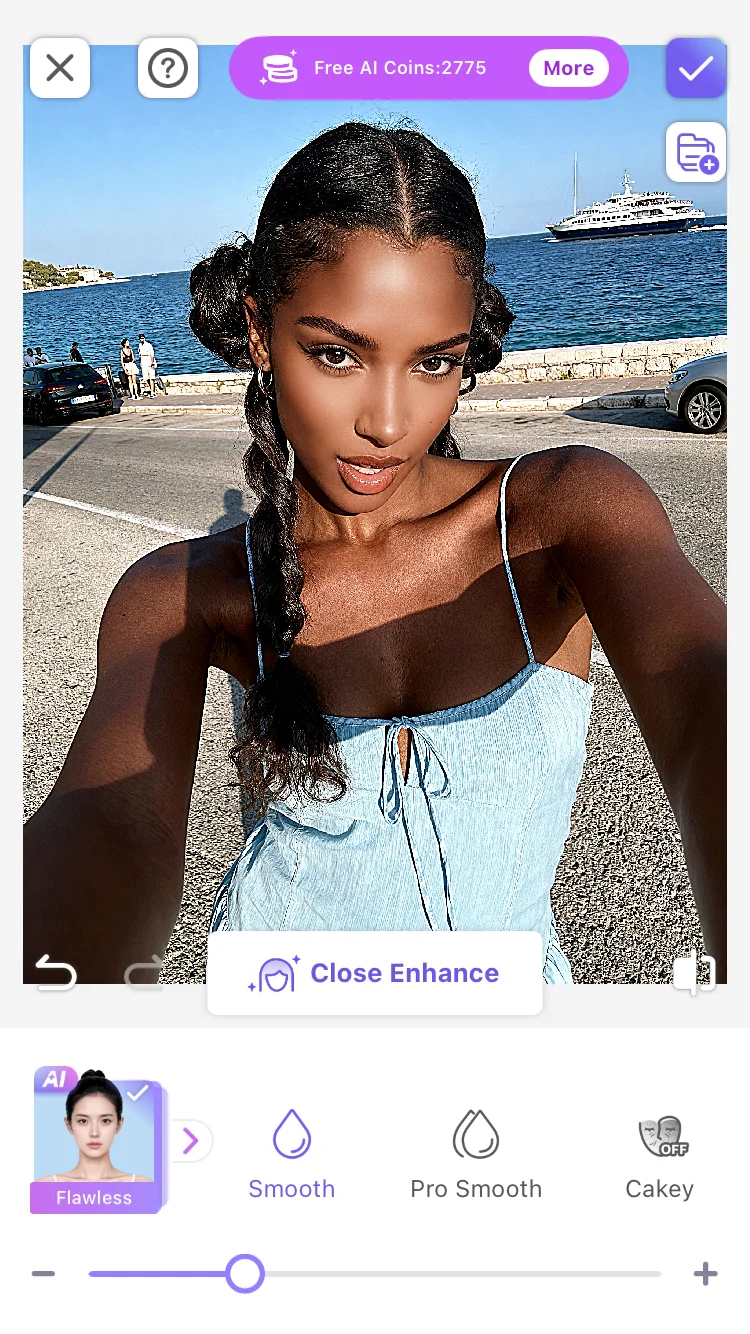
- Auto Mode: Tap the "Auto Beauty Retouch" button and the system will automatically adjust each setting based on the current image. After the one-tap result is applied, you can use the intensity slider to control the overall retouch level.
- Manual Mode: Open the manual adjustment panel and independently tune smoothing, wrinkle reduction, skin tone evening, texture, acne removal, dark circle reduction, eye bag removal, and other specific settings. Each option comes with a slider so you can preview changes in real time.
Step 4: Fine-Tune Each Area
In Manual Mode, you can tap specific area markers such as the eye area or smile lines to make targeted adjustments for that zone. This level of precision lets you personalize the result based on your own facial features, instead of ending up with the same generic over-smoothed face.
Step 5: Confirm and Export
More Tips
Tip 1: Balance natural and polished results. The goal of Beauty Retouch is not to turn you into someone else, but to bring out the beauty you already have. Start with a lower intensity and slowly adjust until it looks the most natural to you. You can even ask a friend for a second opinion to make sure the result still looks like you, just with better-looking skin.
Tip 2: Use it together with other PrettyUp features. Beauty Retouch works perfectly with PrettyUp's other editing tools. For example, you can first improve your skin with Beauty Retouch, then strengthen the atmosphere with color adjustments, or use portrait lighting to add more dimensional light to the face. Combining features helps you create a more complete final result.
Tip 3: Adjust Beauty Retouch carefully for video. When editing video, Beauty Retouch settings should be adjusted based on lighting conditions. In strong light, it is better to lower the retouch intensity to avoid an over-smoothed look. In low light, you can slightly increase smoothing and skin-evening effects to make the skin look cleaner.
Tip 4: Keep the app updated regularly. PrettyUp continues to improve its Beauty Retouch algorithm, so keeping the app updated helps you get better retouching results and more new features. Updates often include algorithm upgrades, new adjustment options, and performance improvements.
Conclusion
Beauty Retouch makes a naturally clear and radiant complexion no longer something reserved for professional photographers. It becomes an everyday experience that any ordinary user can enjoy with ease. Whether you prefer the convenience of one-tap automation or the control of fine-tuning every facial area, PrettyUp gives you the flexibility to shape the final result your way.
The next time you face the camera, you do not need to worry about your skin condition anymore. Open PrettyUp and let Beauty Retouch help you bring back the confident version of yourself that was already there.