 WEB
WEB
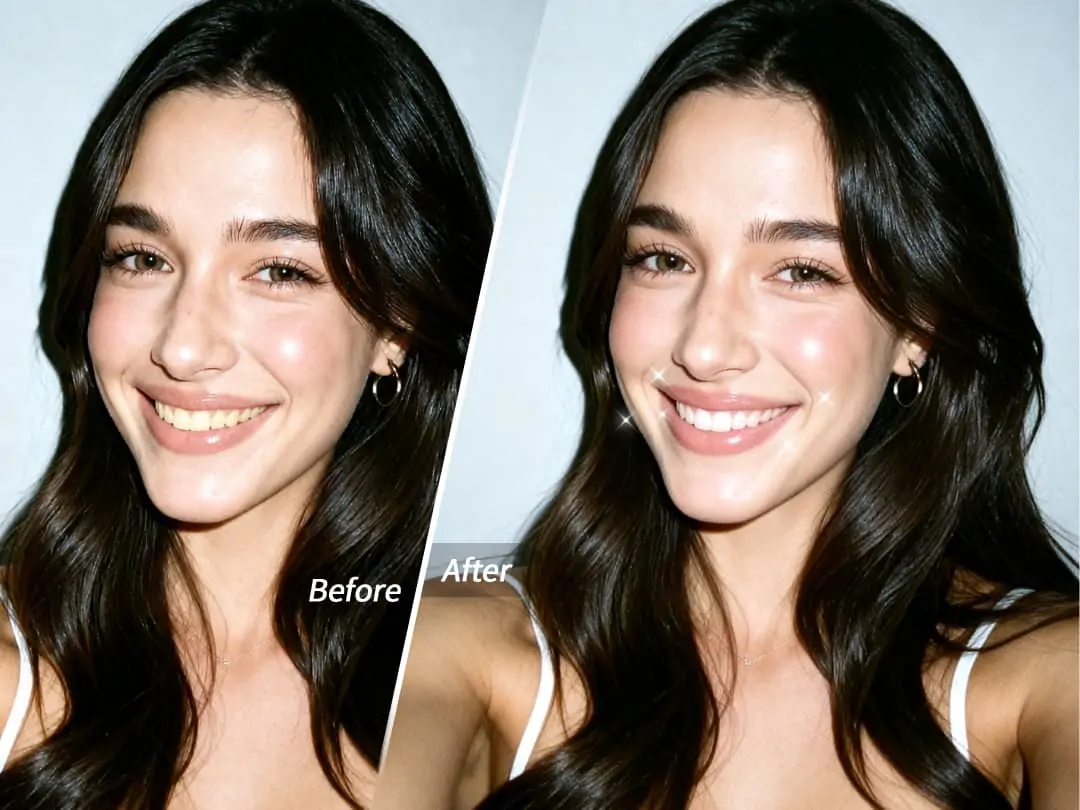
When taking selfies, group photos, or short videos, you may have run into this situation: your expression looks great and your smile is natural, but your teeth look a little dull because of lighting, filters, or the shooting angle, making the whole photo feel a bit less fresh. PrettyUp's teeth whitening feature can help you quickly brighten your smile, making teeth look cleaner and brighter while keeping a natural, realistic feel. Whether it is a photo, video, or Live Photo, you can handle it easily while editing.


What Is Teeth Whitening?
Teeth whitening is a teeth-brightening feature in PrettyUp's face retouch tools, suitable for optimizing smile details. It does not turn teeth into an unnatural pure white, but improves dullness, yellow tones, or insufficient lighting based on the original smile, making the overall complexion look brighter.
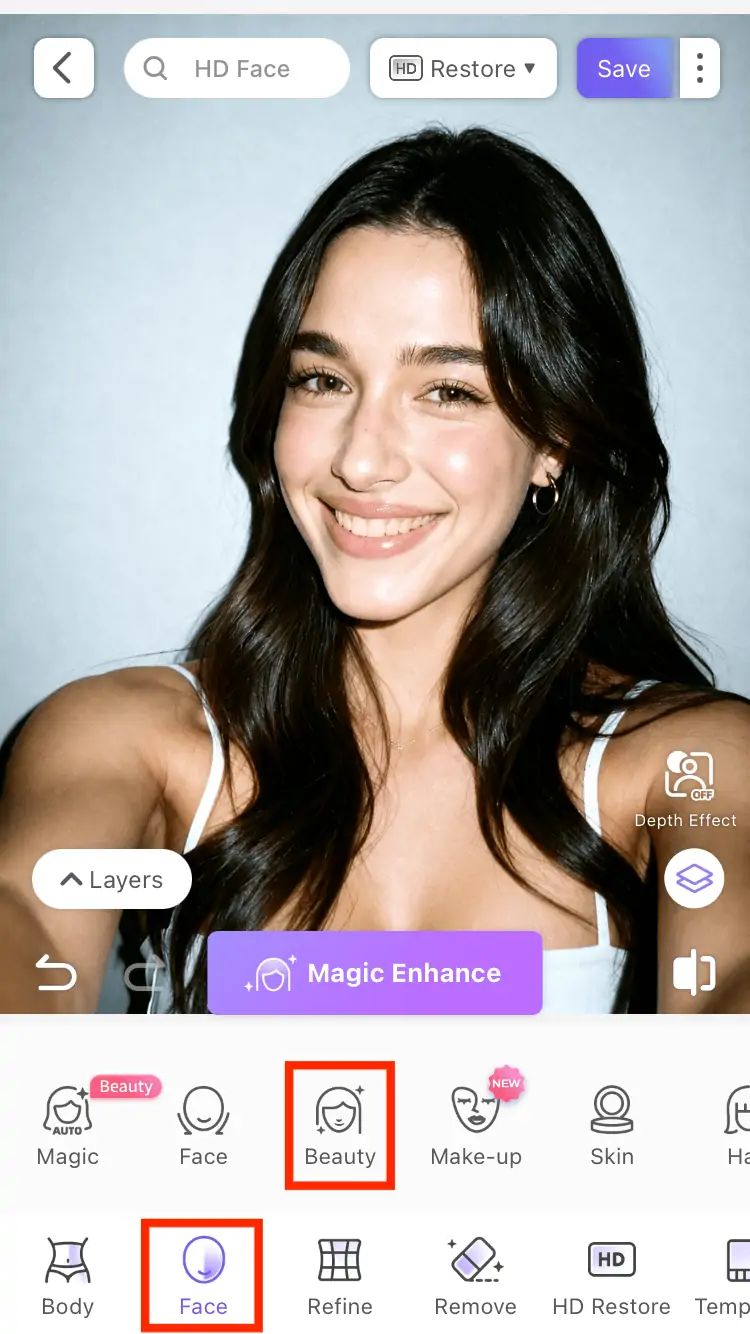
PrettyUp offers two ways to use it: if you want to finish quickly, you can brighten with one tap in "Face - Beauty - Teeth Whitening"; if you want more precise control over the area, you can enter "Face - Teeth Whitening" and brush manually. Both methods are suitable for everyday photo retouching. The difference is that one is faster, while the other is better for detail adjustments.
The teeth whitening feature naturally brightens teeth, making smiles look fresher in photos.
What Scenarios Is It Suitable For?
Selfies and profile photos: Close-up selfies can easily magnify tooth color and lighting issues. After using teeth whitening, your smile will look fresher, and profile photos, ID-style photos, or social media photos will more easily look energetic.
Friend group photos and multi-person photos: Parties, trips, and birthday photos often include multiple people in the same frame. PrettyUp supports multi-face materials, so you can check each person's smile separately based on their smile condition and make the group photo look more consistent overall.
Short videos and talking-head content: In videos, teeth keep changing under different lighting when you speak, smile, or turn your head. Teeth whitening supports video editing and can help talking-head videos, vlogs, dance clips, outfit showcases, and other content maintain a cleaner-looking smile.
Dynamic moments in Live Photos: Live Photos often capture an especially natural expression in a single moment, but the teeth may not be bright enough. Teeth whitening can be used for Live Photos, keeping dynamic smiles fresh too.
Smiles in photos, videos, and Live Photos can all be easily optimized with the teeth whitening feature.
How to Use Teeth Whitening?
Method 1: One-tap teeth whitening: Open PrettyUp, import the photo, video, or Live Photo you need to edit, and after entering the editing page, choose "Face - Beauty - Teeth Whitening". This method is suitable for users who want to finish retouching quickly, especially selfies or group photos where the teeth area is clear and only slight brightening is needed.
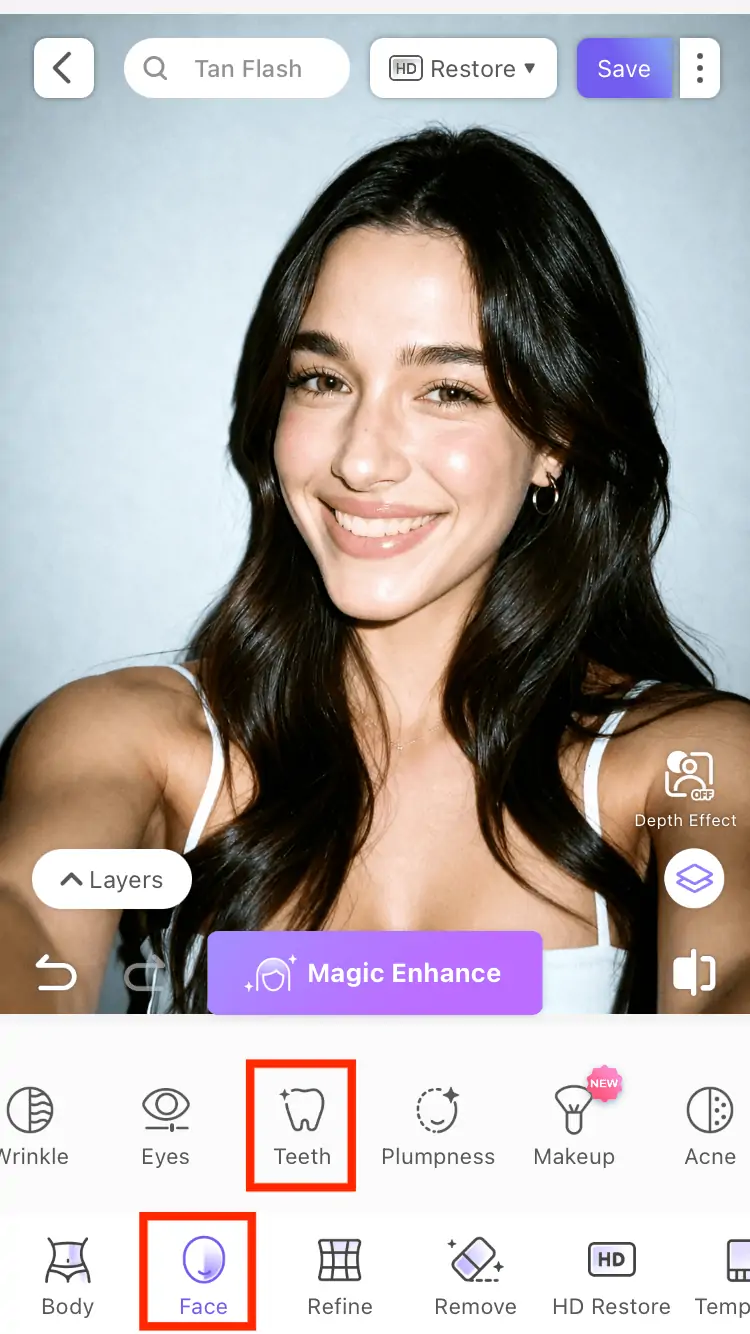
Method 2: Manual teeth whitening: If you want more precise control, you can choose "Face - Teeth Whitening" to enter manual mode. Manual teeth whitening is suitable when the teeth area is small, multiple people are in the same frame, local lighting is uneven, or you only want to adjust one part of the smile.
Adjust intensity: Use the intensity slider to control the teeth whitening effect. It is recommended to start with a lower intensity, then gradually increase it according to the image brightness, making it easier to keep the real and natural texture of the teeth.
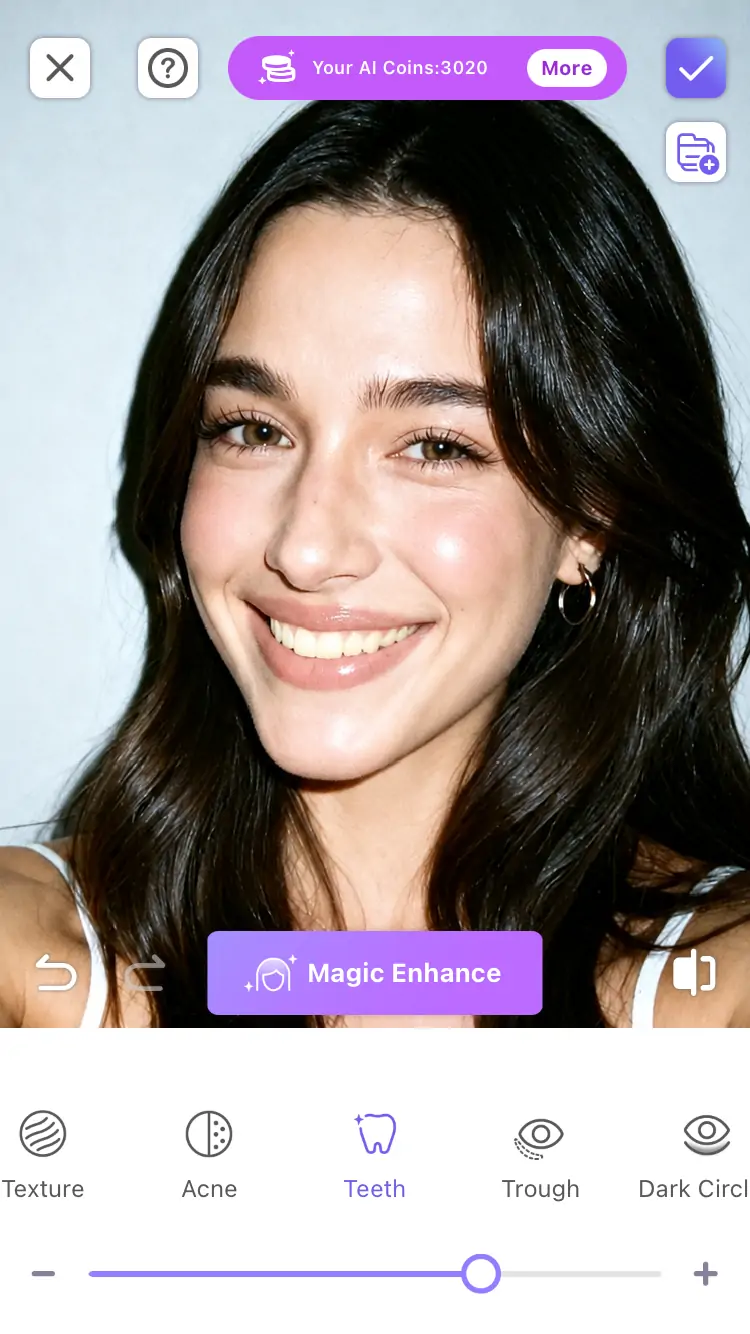
Control brush size: When brushing manually, you can adjust the brush according to the size of the teeth area. For close-up selfies, you can use a slightly larger brush to cover quickly, while distant group photos are better suited to a smaller brush for details.
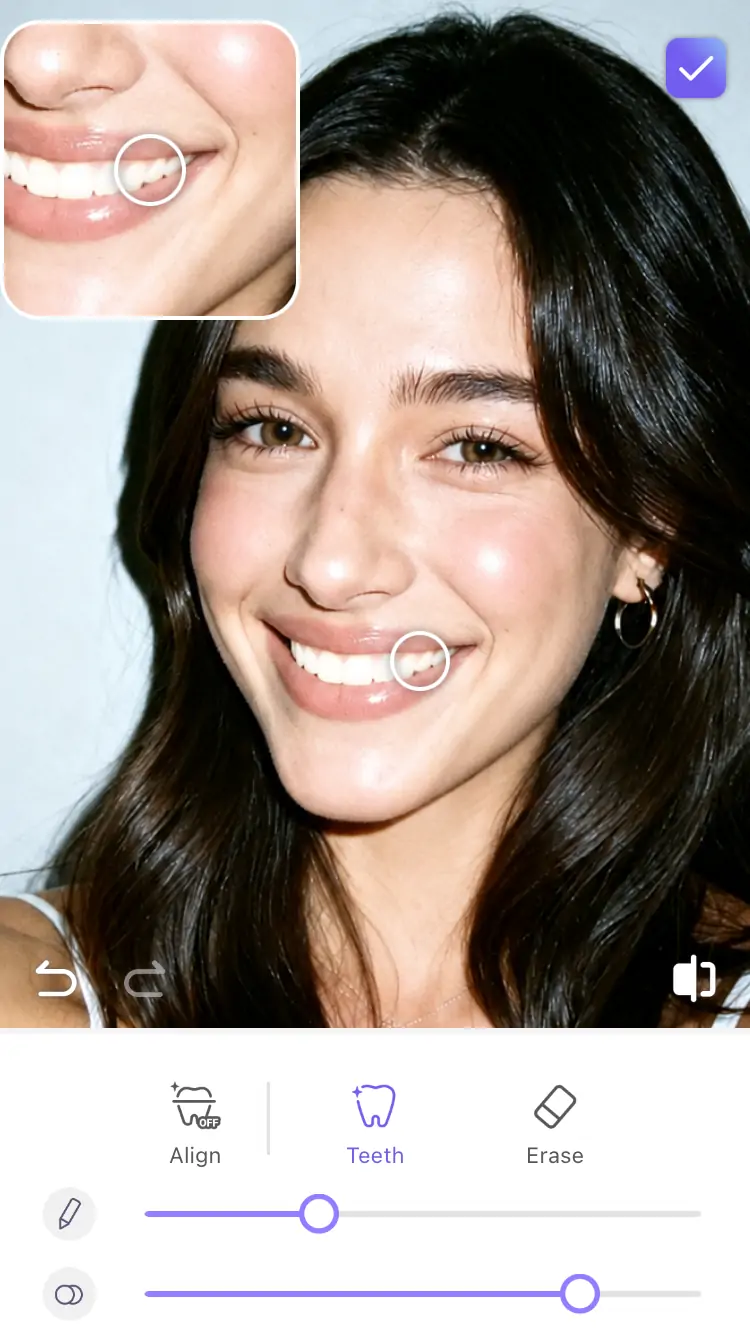
Use the eraser and undo to refine details: If you accidentally brush over the lips, gums, or surrounding skin, you can use the eraser to correct it; if you want to go back to the previous step, you can also use undo, making manual editing more reassuring.
After finishing the teeth whitening adjustment, preview the overall effect, then save or share. When processing videos and Live Photos, it is recommended to play them back to check the dynamic effect and confirm the smile still looks natural during movement changes.
Manual teeth whitening supports intensity, brush, eraser, and undo, making it easier to control details.
More Tips
Tip 1: Do not push the intensity too high: A natural teeth whitening effect usually looks better over time than an exaggerated pure white. Especially for everyday selfies and group photos, slight brightening can already make the smile look cleaner.
Tip 2: Start brushing from the center area of the teeth: In manual mode, you can first process the most obvious teeth area, then use a small brush to touch up the edges. This can reduce the chance of accidentally brushing onto the lips or skin.
Tip 3: Check each person in group photos one by one: In multi-face materials, each person's tooth brightness, expression, and lighting may be different. It is recommended to zoom in and check separately to avoid one person's effect being too strong while another person is missed.
Tip 4: Always preview videos and Live Photos dynamically: An effect that looks suitable in a still frame may have detail differences when speaking or turning the head. Playing it once before saving can make the final effect more stable.
Tip 5: Pair it with other face retouch features: Teeth whitening can be used together with skin smoothing, acne removal, lipstick, facial feature reshaping, and other features. Slightly brighten teeth, then unify skin tone and lip color, and the overall makeup look will feel more complete while still keeping your natural self.
Using it with face retouch features can make the smile, skin tone, and overall complexion more harmonious.
Summary
PrettyUp's teeth whitening feature is suitable for everyday editing scenarios where you want to make your smile brighter and fresher. You can use "Face - Beauty - Teeth Whitening" to quickly complete one-tap brightening, or use "Face - Teeth Whitening" to manually control the area, intensity, and details. Whether it is a selfie, group photo, short video, or Live Photo, you can optimize your smile in an easier way.
If you want smiles in your photos and videos to look more natural on camera, download PrettyUp now and try the teeth whitening feature.